Start with three devices
A teammate sends you a screenshot from a router you’ve never used. The terminal looks unfamiliar. Start with a question you already know how to ask. Where should the packet go next?
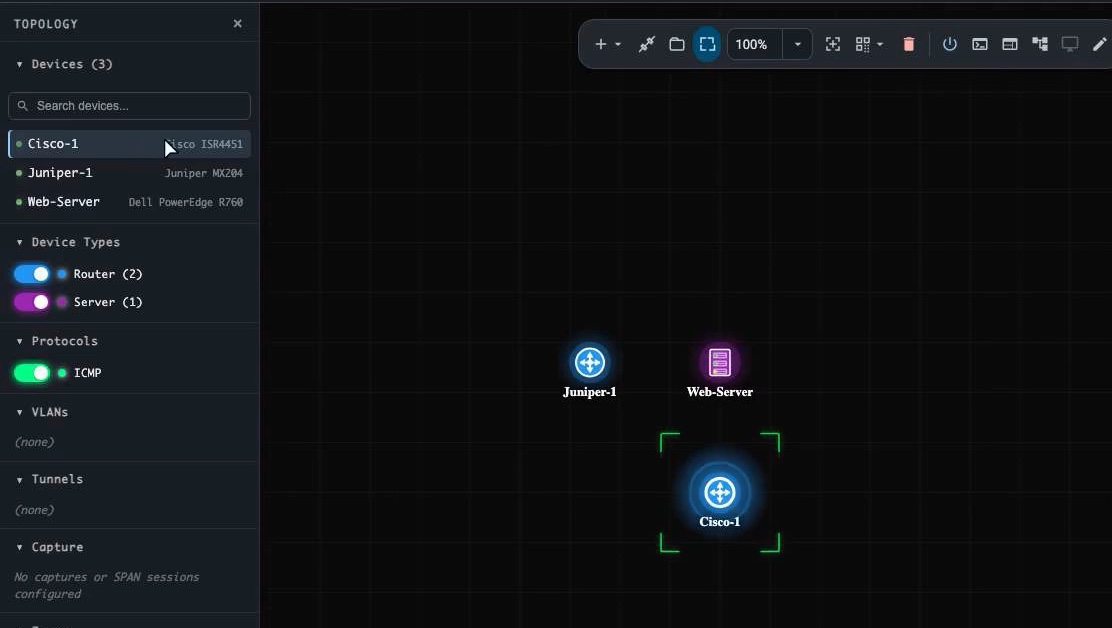
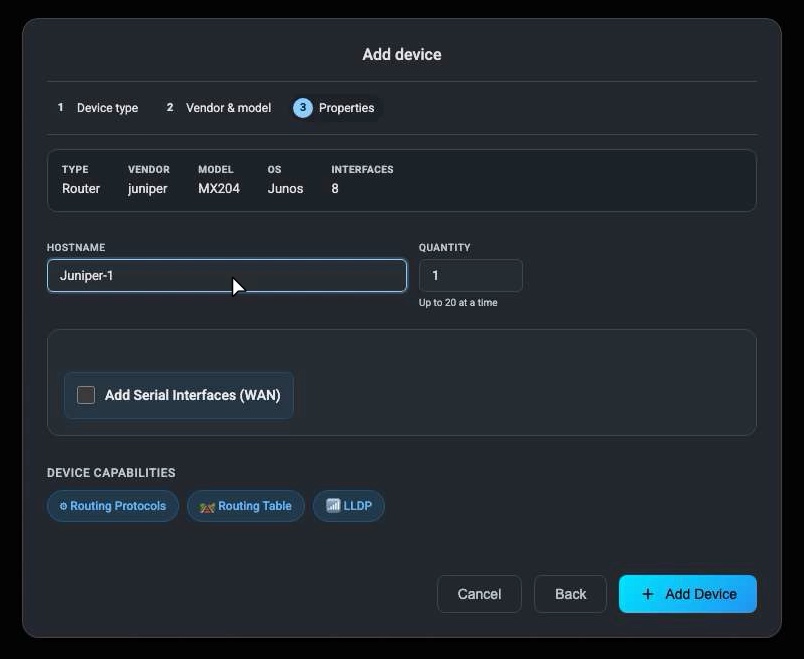
The Portal tour puts a simulated Cisco router, a Juniper router, and a Linux server in one lab. The cover screenshot shows them before they’re connected. In My Labs, create a blank lab and use Add device to choose profiles available to your account. Start with one router you know and one you’d like to learn.
Ask the same questions on both routers
Connect your server to the near router and link the two routers. Give the server a gateway and set up a route to a test address on the far router and back. Before you run a ping, point to each link the packet and its reply should take.
Open each router’s terminal and look for evidence that supports your prediction. The commands and output can differ across profiles. Start with these three checks.
- Are the interfaces on the expected links up?
- Does the near router know where to send traffic to the test address?
- Does the far router know how to send the reply back to the server?
Give a teammate one fault to find
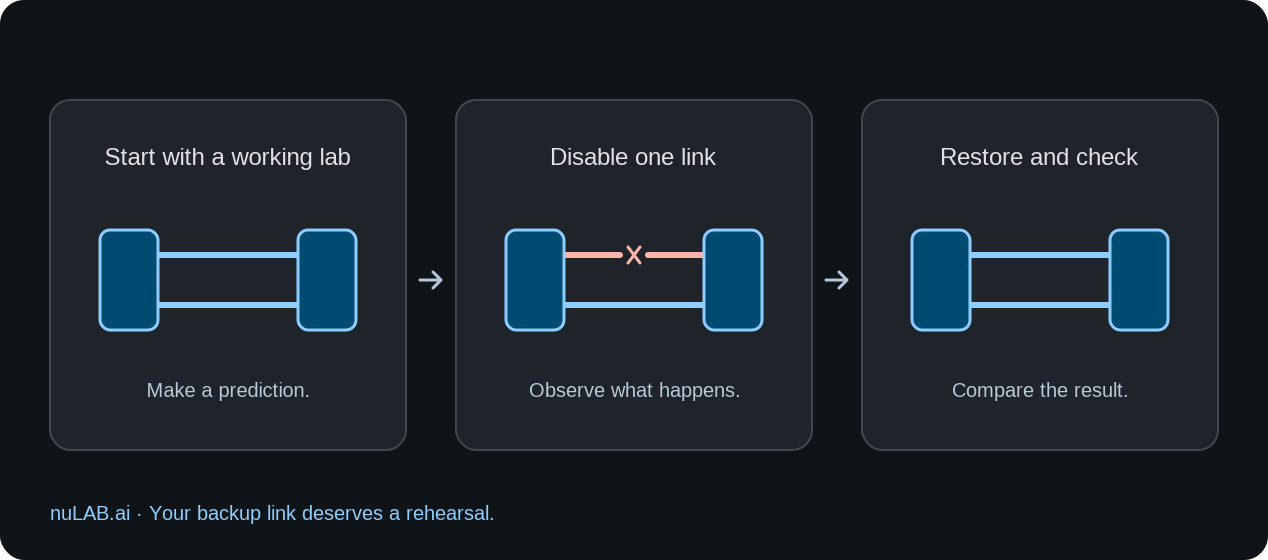
Once the ping works, save the baseline and work in a disposable copy. Disable the link between the routers. Ask a teammate to find the break from the other side and show you the evidence they used. Restore the link and repeat the original ping to check recovery.
Compare notes at the end. Each of you should be able to point to the same link and explain how you found it. That’s a troubleshooting habit you can take into the next lab.
Choose profiles for your next lab
Check the device picker for the models and features available with your plan and Portal version. nuLAB.ai develops its simulator and training independently of device vendors. Simulated commands and behavior can differ from physical equipment.