The diagram made sense yesterday
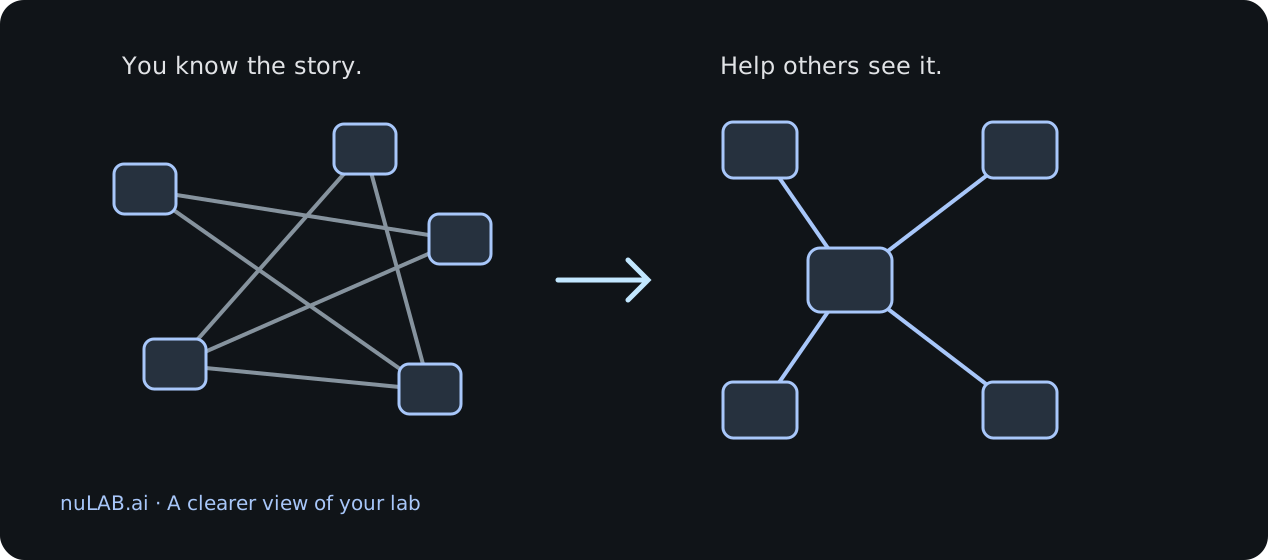
You built the lab. You know why that router sits in the corner, where the branch connects, and which line disappears behind three other devices. Then someone else opens it and asks: “Where do I start?”
You begin explaining. Follow this cable. Ignore that crossing. The important device is over there. Five minutes later, you are still describing the picture instead of discussing the network.
A topology can be connected correctly and still be hard to read. That is the everyday problem behind AI Layout in nuLAB.ai: giving an existing lab a clearer visual arrangement so the conversation can move forward.
Give the next person a place to start
Imagine handing the same lab to a colleague, a learner or your future self after a busy week. What should they notice first? The centre of the network? Two branches? The devices at the edge?
That question is more useful than “Can you make this look nicer?” A good diagram gives the reader a route through the idea. You should be able to point to the main part of the network without first tracing every cable with your finger.
Before rearranging anything, try a small challenge: describe the structure in one sentence. “Keep the core in the middle, put the branches on either side, and place the access devices below.” You now have something concrete to look for in the result.
Try the arrangement before you commit to it
In the walkthrough, we open Layout, choose AI Layout, select a template and connector style, and describe the arrangement we want. Generate preview gives us a proposal to inspect.
This is the useful pause. Does the arrangement tell the story you intended? Can you follow the connections more easily? Would you feel comfortable handing this view to someone who has never seen the lab?
If the answer is no, Cancel keeps the current arrangement. You can reopen AI Layout and try another direction. An AI suggestion is a starting point for your judgement; it does not have to become your final diagram.
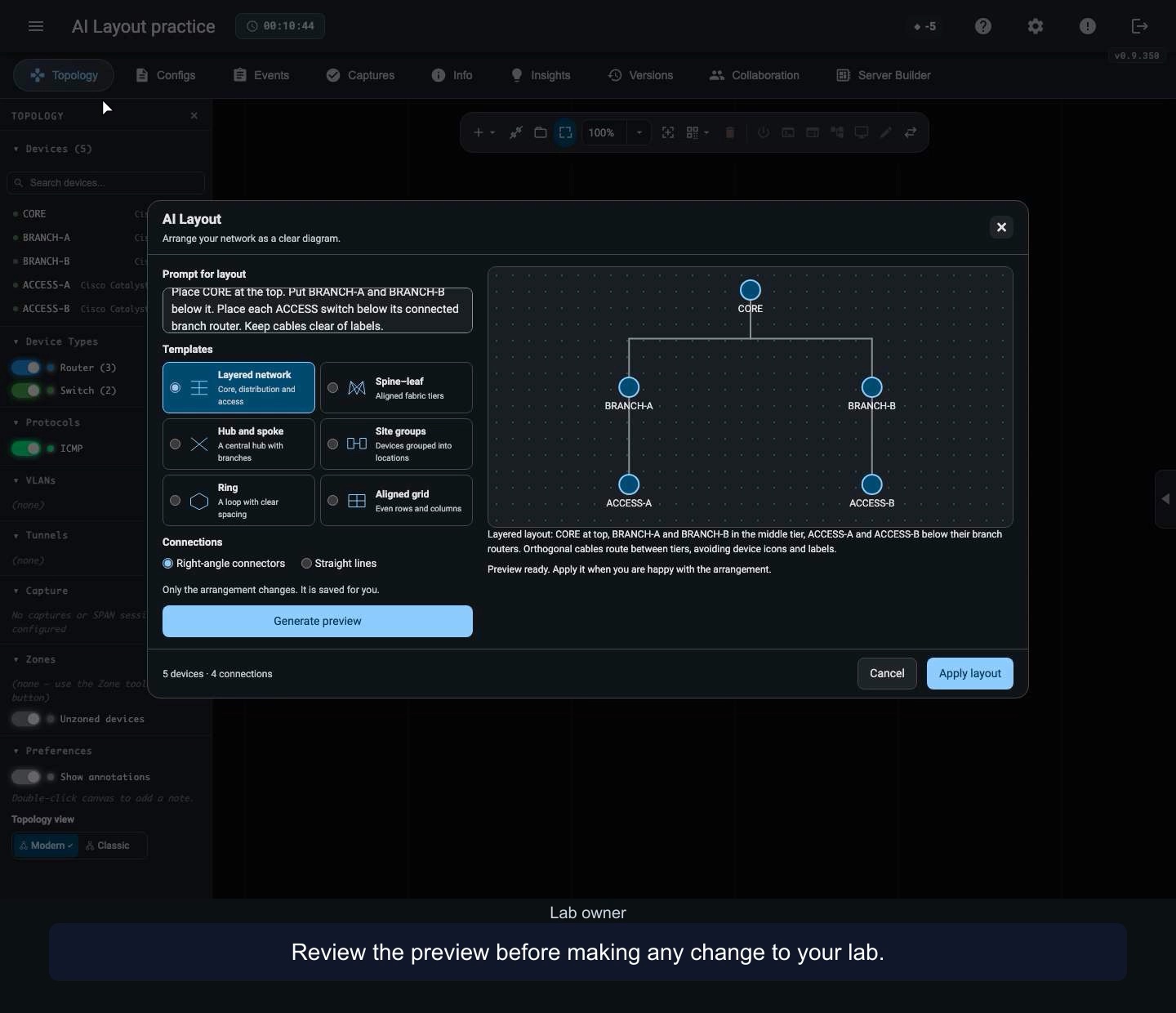
A clearer picture, the same network
Once you are happy with the preview, Apply layout changes the visual arrangement. The devices and connections stay in the lab. In the walkthrough, we reopen the lab to check the saved positions and connectors.
That distinction matters. Moving a router on the canvas does not configure it. Straightening a connection does not repair connectivity. AI Layout saves the arrangement for your account; the network still needs its own checks.
Think of it as clearing the desk before a difficult conversation. The work is still there. It is easier to see what you are working with.
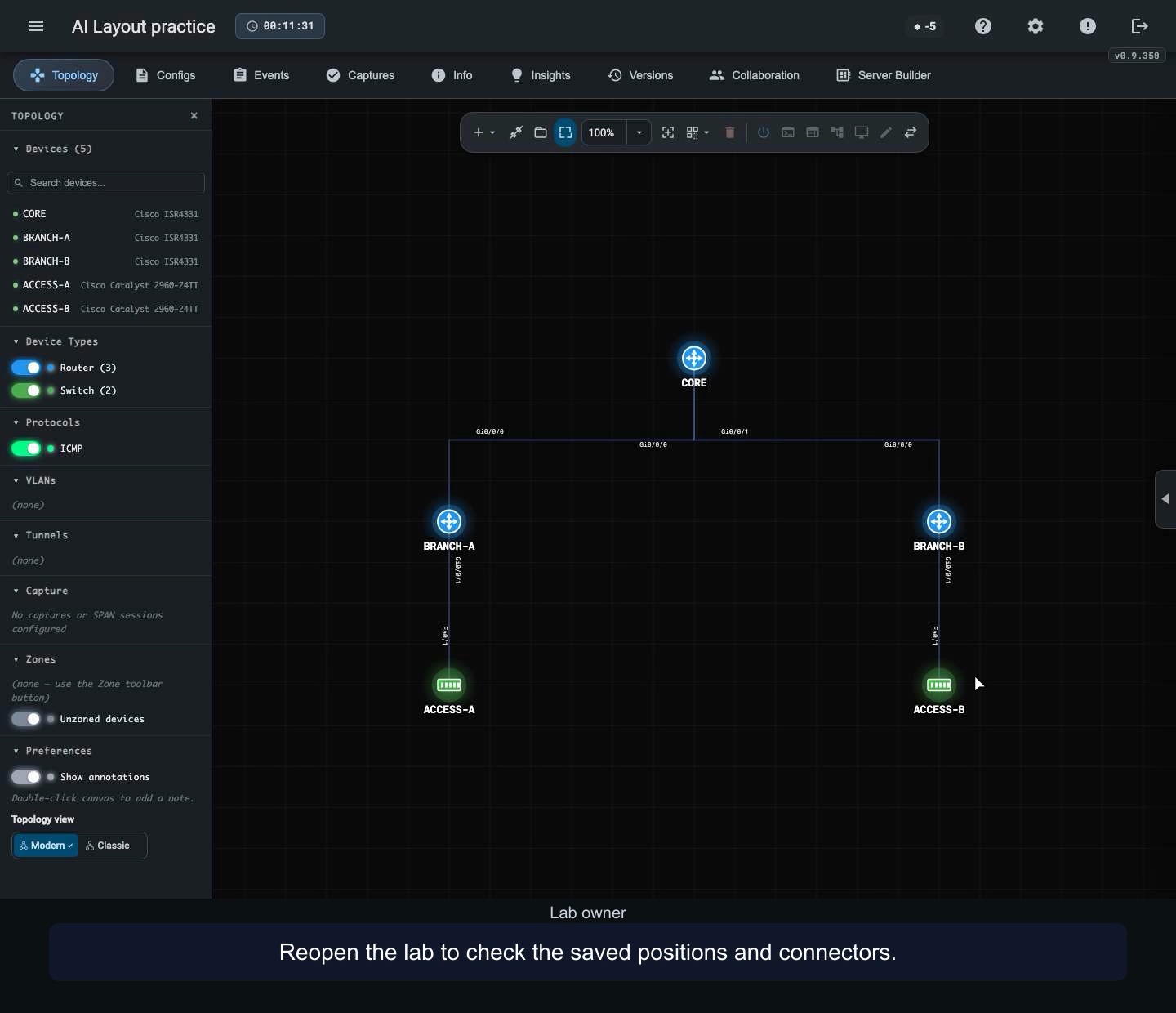
Make your next lab easier to hand over
You do not need a huge topology to try this. Start with a lab you already understand and ask whether someone else could find their way around it.
For a lesson, arrange the devices around the idea you want learners to notice. For a team discussion, bring the part under review into focus. For your own study, leave a diagram you can return to without rebuilding the whole story in your head.
- Name the one thing the reader should understand first.
- Try an arrangement that makes that structure visible.
- Review the preview before applying it.
- Reopen the lab and check what was saved.
See it in under two minutes
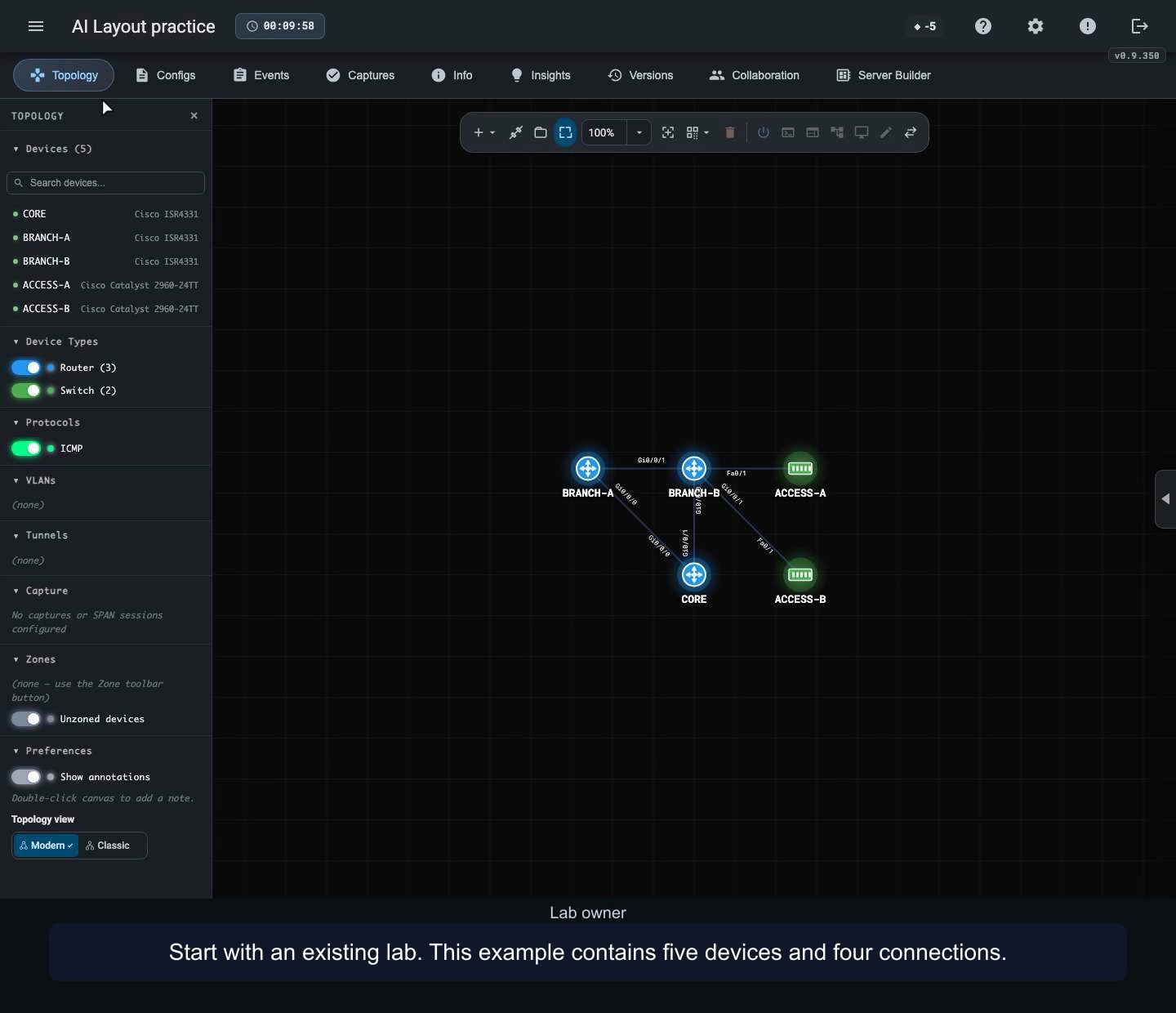
Our narrated walkthrough follows the whole sequence: start with an existing lab, choose an arrangement, inspect a preview, cancel, try again, apply and reopen. The screenshots in this article are taken from that recording.
You will need an existing lab and access to AI Layout. Generated arrangements can vary, and generation waits are shortened in the video.
Then try the handoff question again: “Where would someone else start?” If the answer is obvious, your diagram is doing useful work.