 2:21
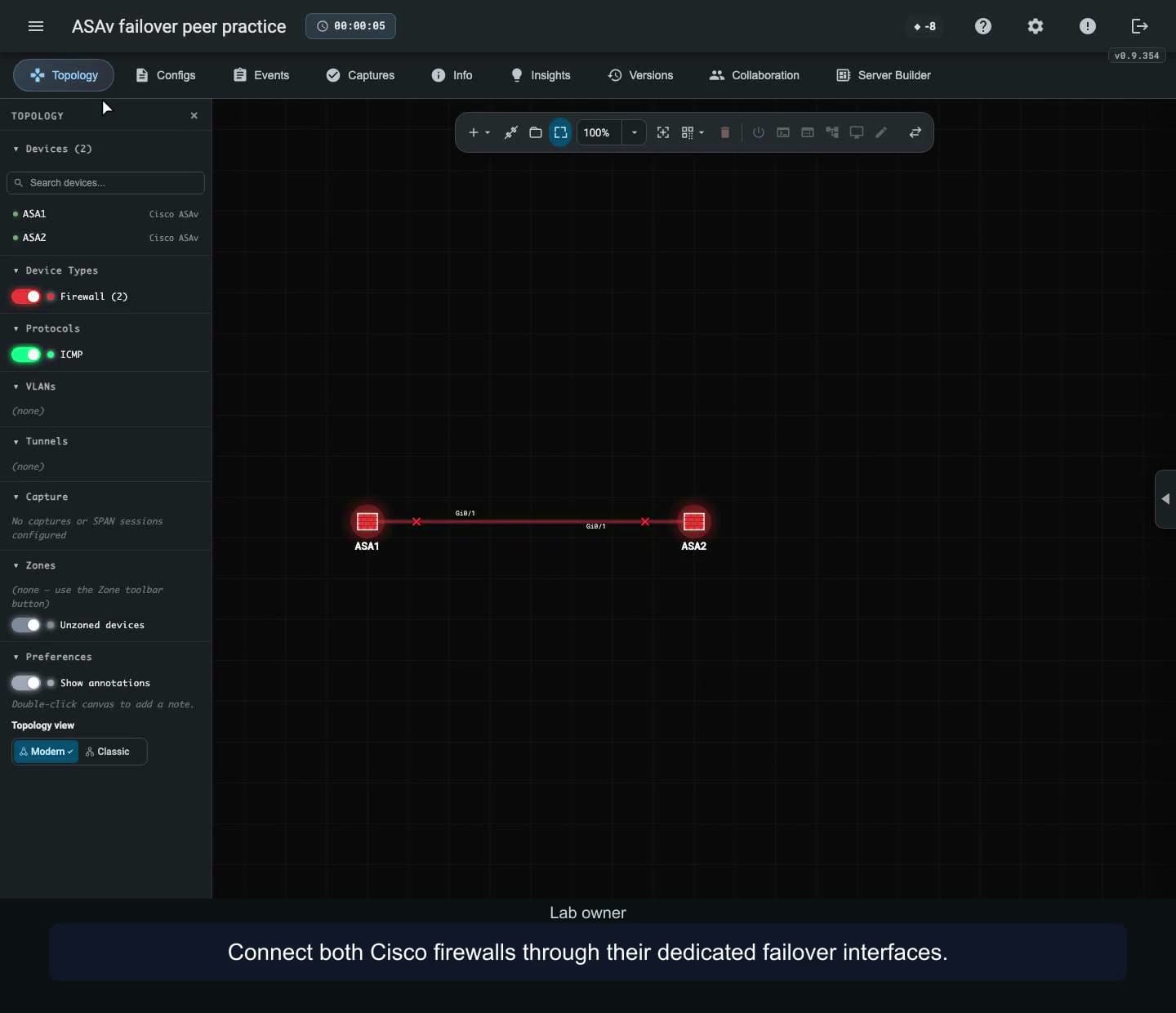
Check ASAv failover peer status
Configure an active and standby Cisco ASAv pair, then verify peer status before and after a failover link interruption.
WATCH. LEARN. TRY IT.
See how to use nuLAB, one workflow at a time. Watch every episode without signing in.
2:21Configure an active and standby Cisco ASAv pair, then verify peer status before and after a failover link interruption.
 2:06
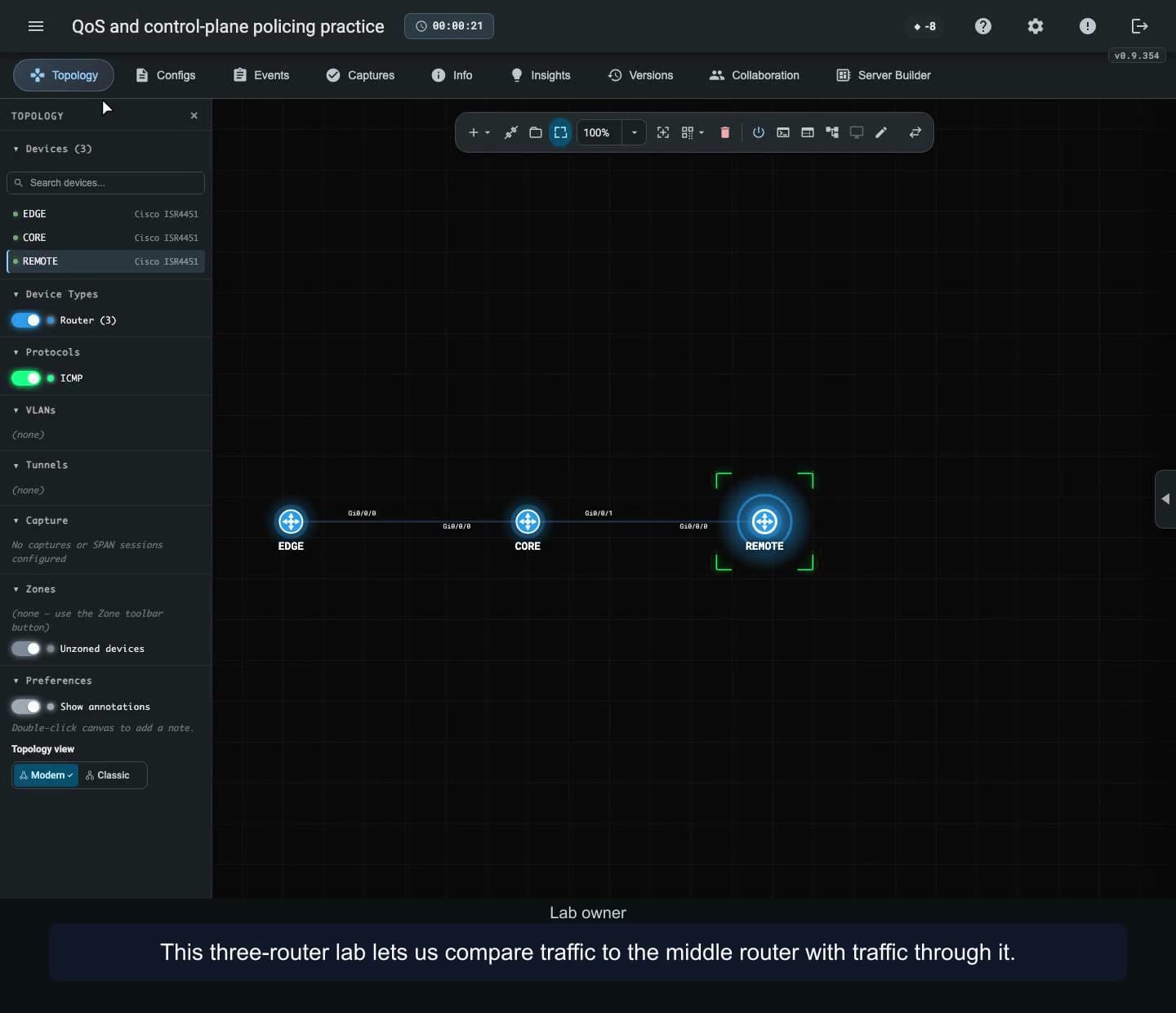
Compare interface and control-plane policing on Cisco IOS XE using known traffic bursts and policy counters.
 2:12
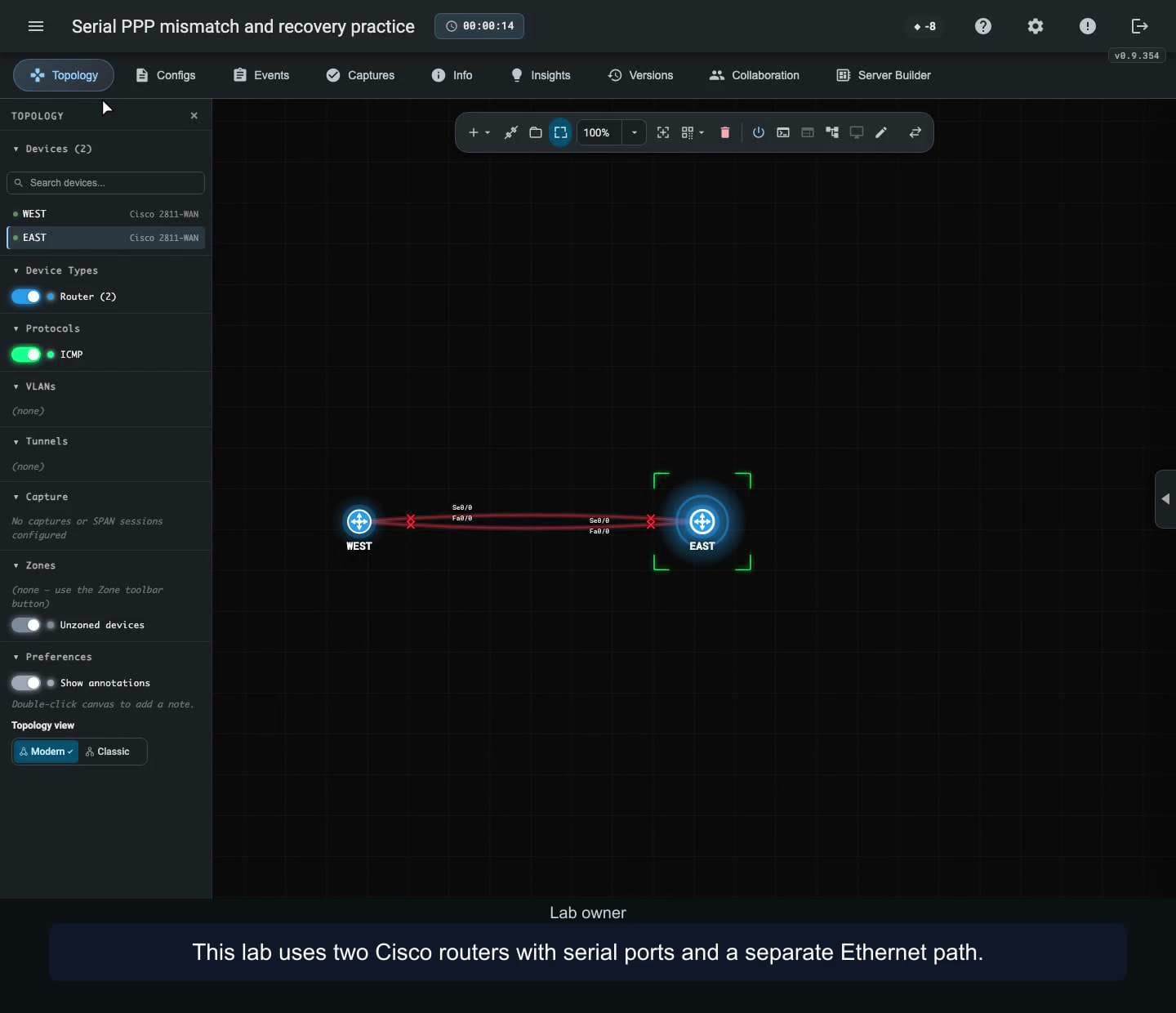
Bring up a serial PPP link between Cisco routers, reproduce an encapsulation mismatch, and verify recovery alongside a separate Ethernet path.
 2:11
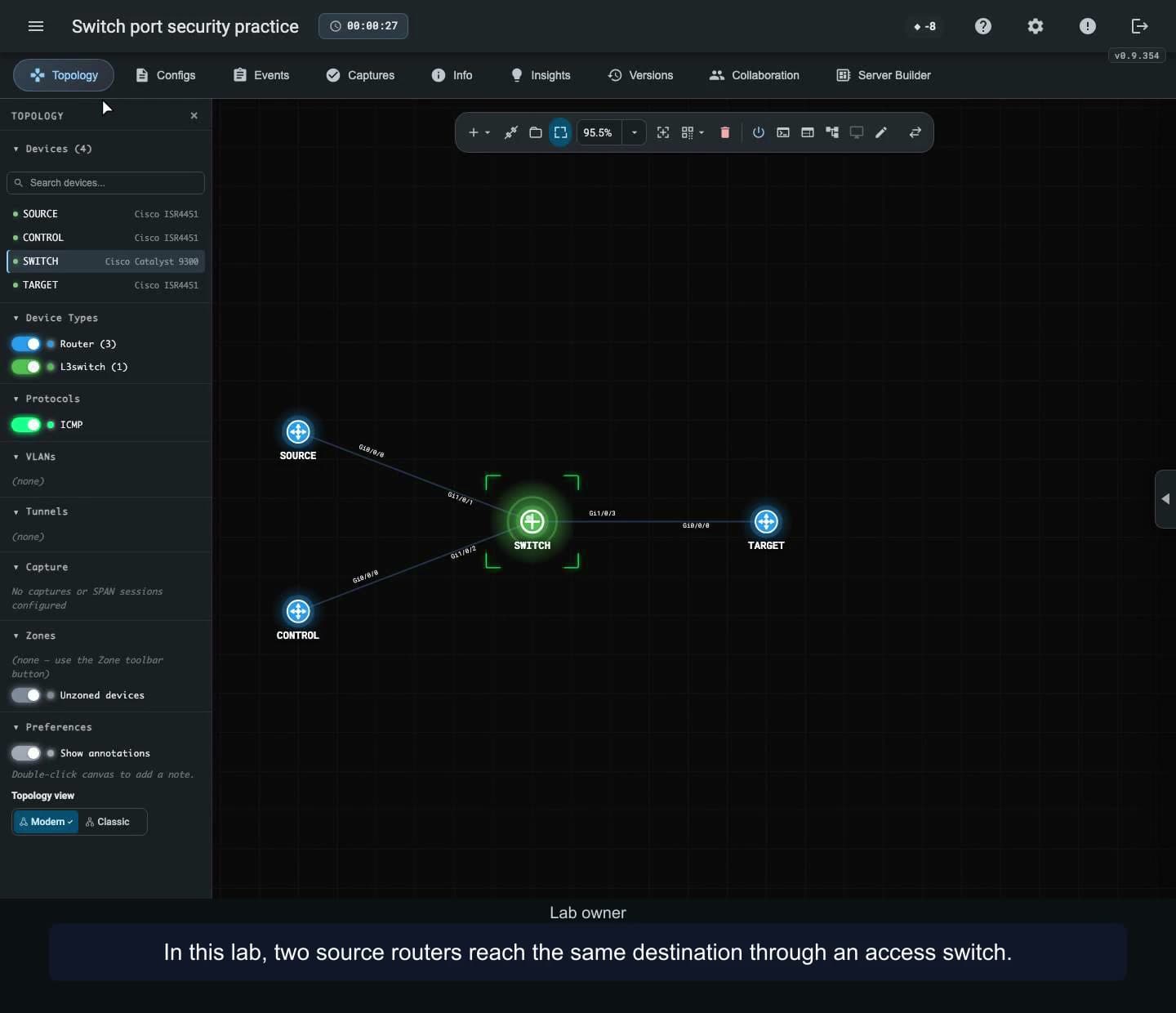
Test Cisco switch port security in restrict mode, compare traffic from two sources, and restore access with the correct MAC address.
 1:18
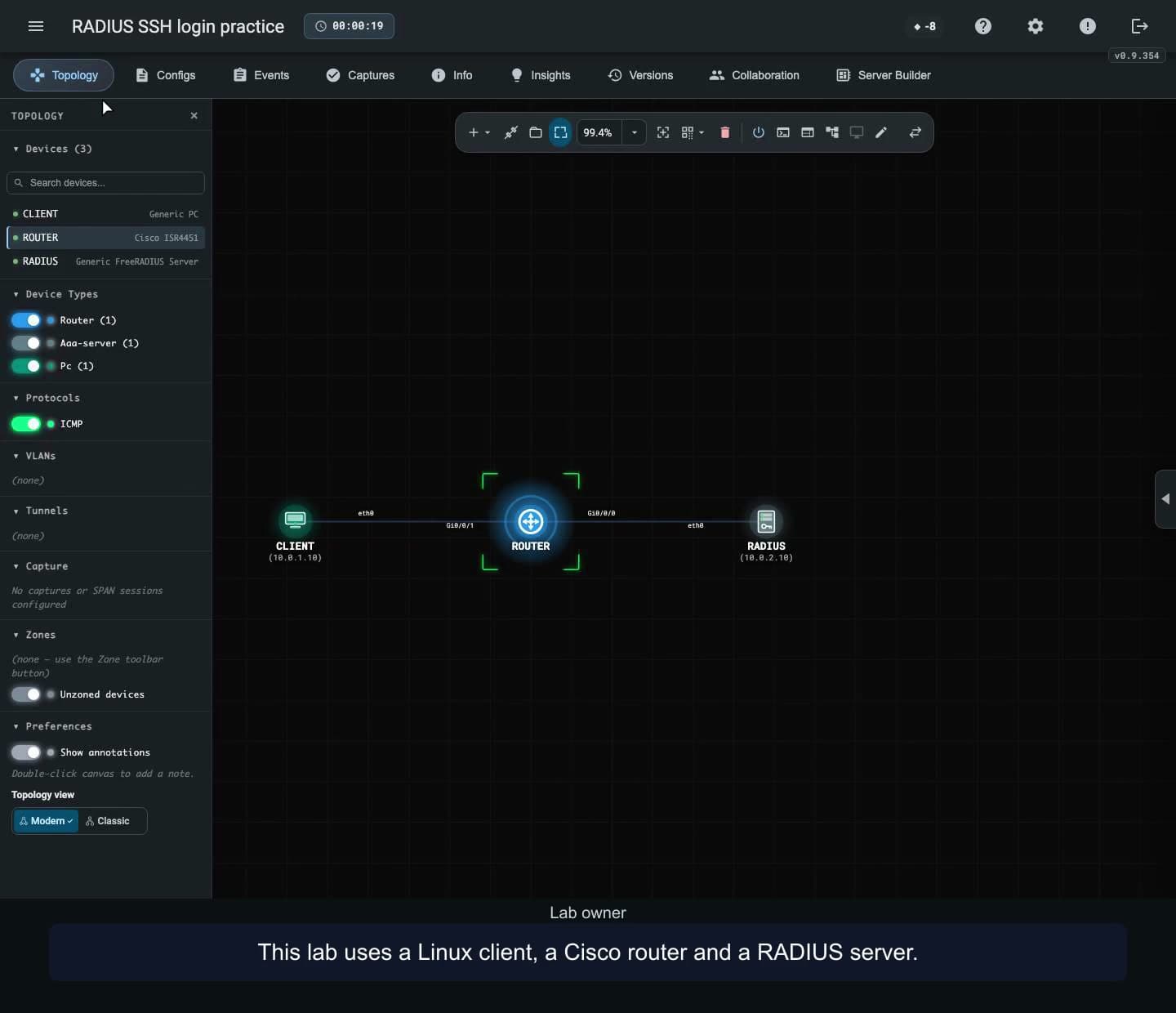
Verify RADIUS-backed SSH login from a Linux client, compare Cisco IOS XE privilege levels, and inspect accepted and rejected requests.
 2:18
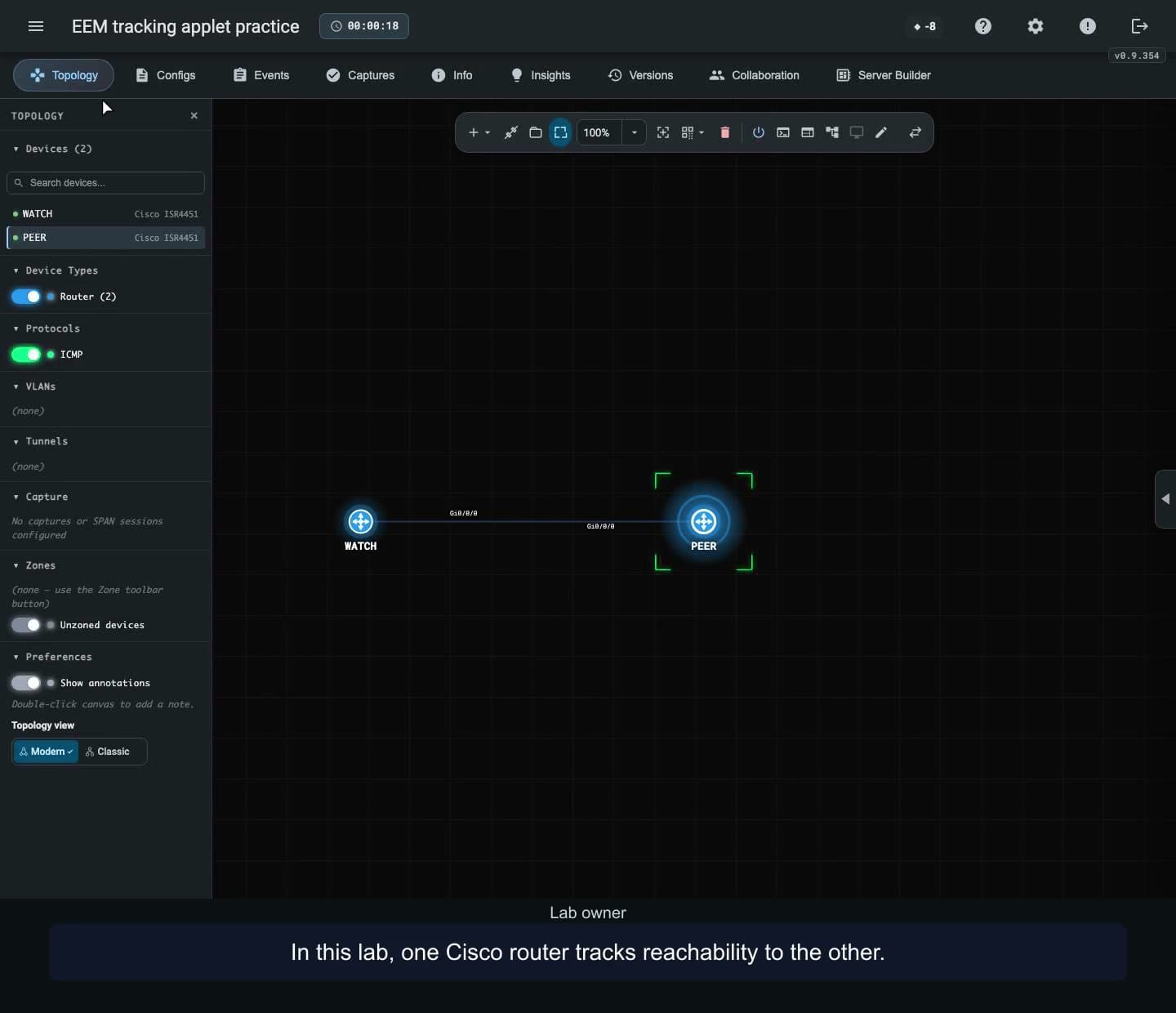
Use Cisco IOS XE EEM to add and remove a test route as tracked reachability changes, then verify the result against the event history.
 0:55
Run a short Python command in Cisco Guest Shell and use the Cisco CLI module to read the router’s interface table.
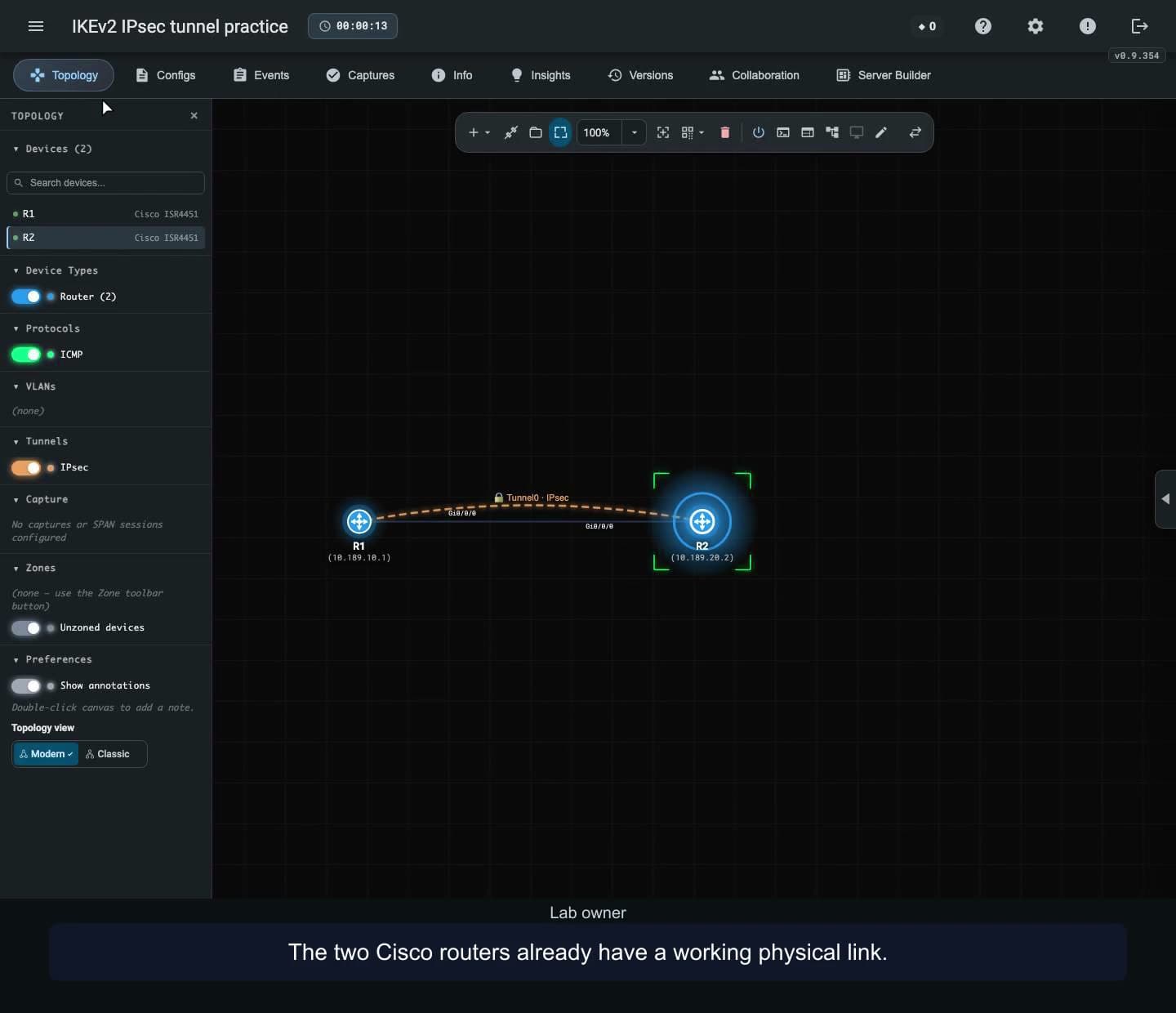 2:39
Configure an IKEv2 IPsec tunnel on Cisco IOS XE, verify protected forwarding and test what happens when the shared keys differ.
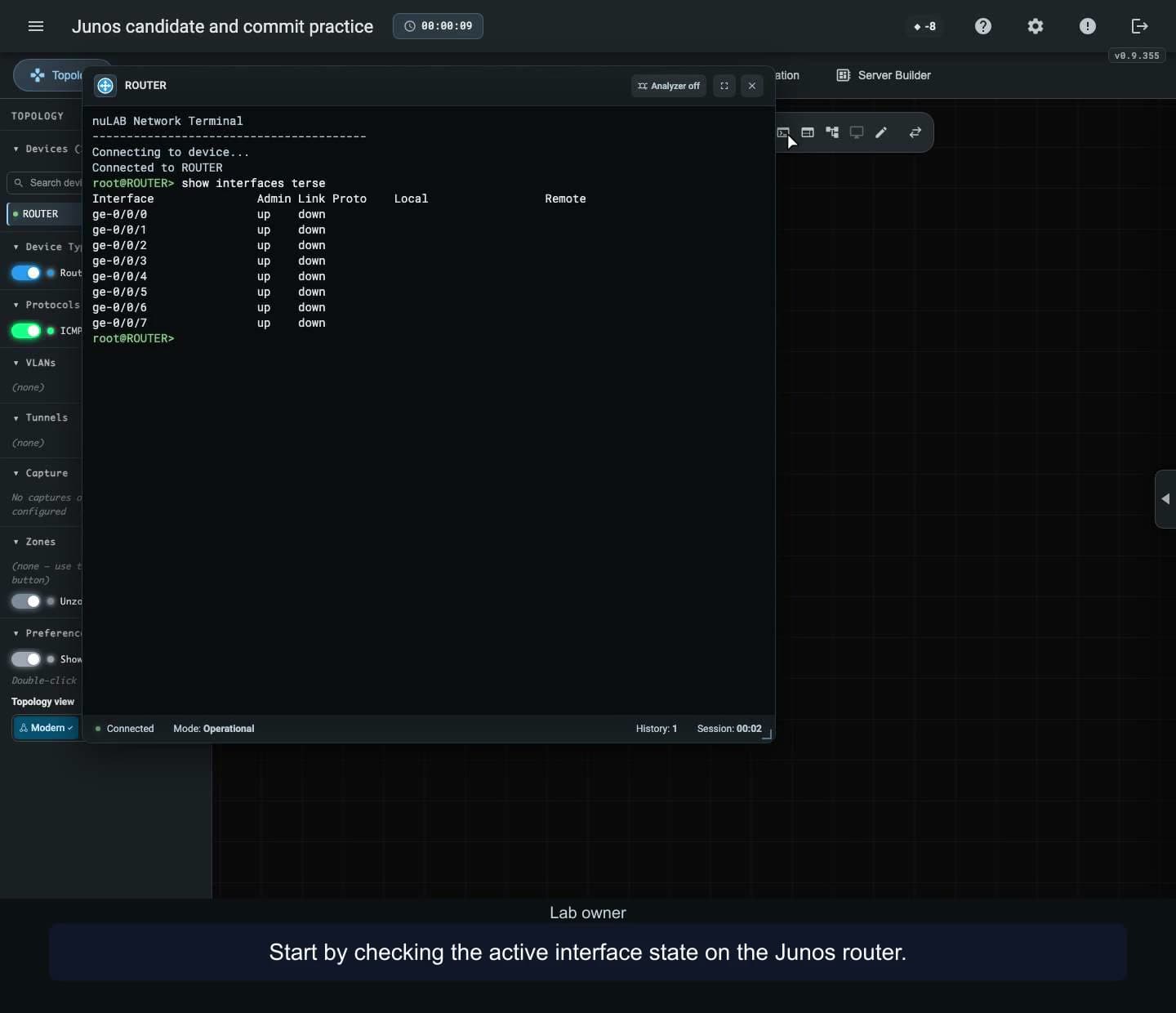 1:08
Compare a Junos candidate configuration with operational state, commit an interface address, and discard a later edit.
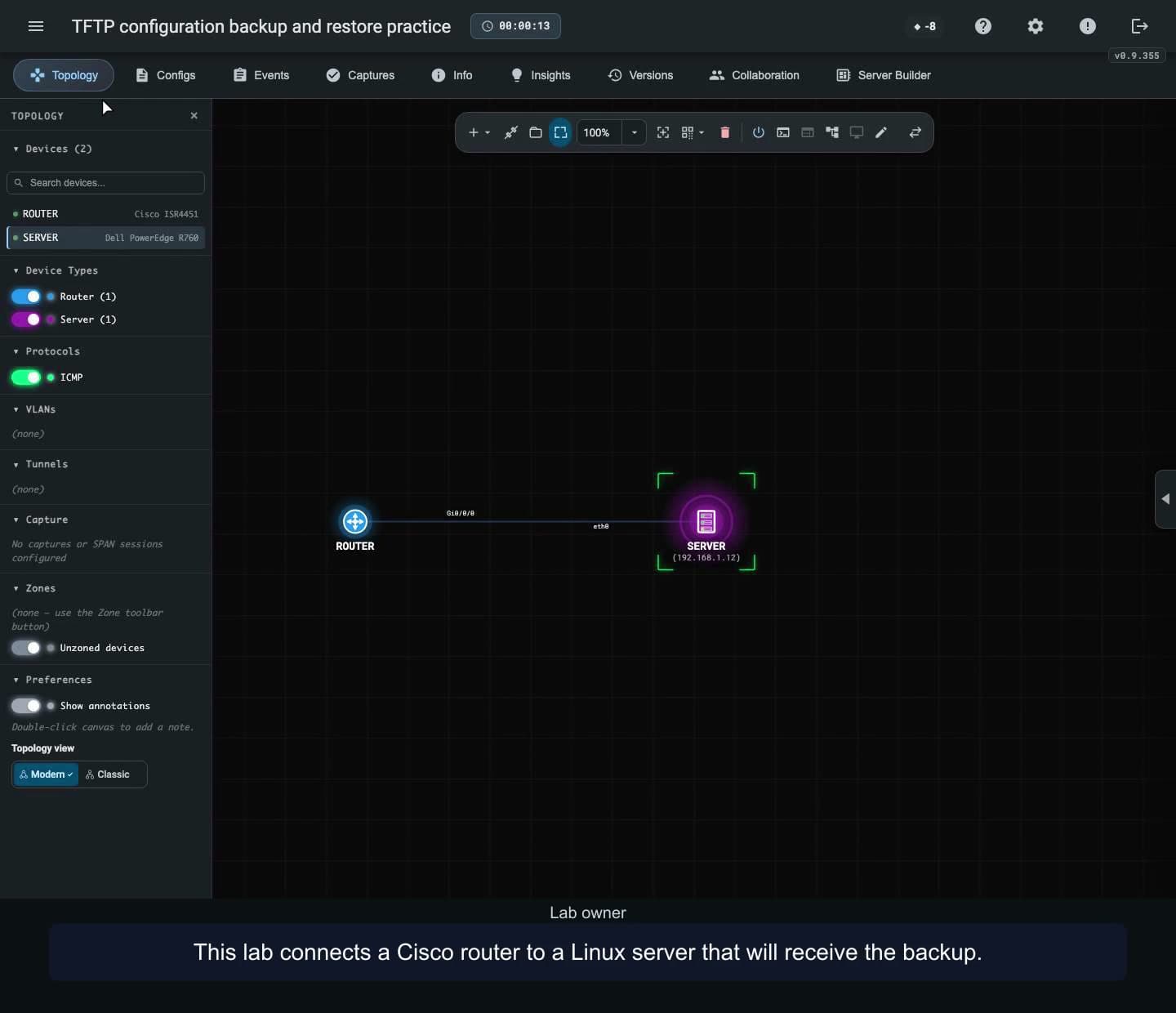 1:47
Copy Cisco IOS XE startup configuration to a TFTP server, verify the backup, and restore it before reloading the router.
These tutorials use personal prepared labs, compatible active-member seats and distinct accepted accounts per UTC calendar month. Invitations do not consume monthly seats; removing a member does not refund a monthly seat. Shared Training Platform libraries and billing/grants remain deferred.
Live sharing shows topology and terminal output. Built-in audio and video are unavailable; arrange voice separately. English on-screen explanations. Watching is free; using Training Platform features needs an account and an appropriate plan.
Earlier recordings use the previous School name for the Training Platform.
Build a topology, connect devices, configure addressing and test connectivity. Arrange the canvas, add notes and zones, then reopen your saved lab. Follow each workflow using chapters and written explanations.
Watching is free. Create a nuLAB account to try the demonstrated workflow.
Find free and credit-priced Marketplace lab packs in the portal Knowledgebase. Check prerequisites, device limits and the displayed price, then install an independent lab copy. Prices and availability vary.
Watching is free. Sign in with an account that supports the selected pack to try the workflow. The free-lab demo spends zero credits; the credit-pack demo uses a labeled 20-credit listing and demo credits, with no payment checkout completed.
Capture traffic on a cable, inspect packet fields and bytes, filter the display, follow an observed path and export all or displayed frames as PCAP. Frames are reconstructed simulation observations; temporary capture buffers are not preserved by saving a lab.
Watching is free. Using Traffic capture requires a nuLAB account with Pro or above.
Identify connected neighbors and address mappings, inspect physical ports and test reachability. Follow prepared lab examples using chapters and narration transcripts. A cached address mapping alone does not prove a working link; supported syntax and behavior vary by device.
Watching is free. Create a nuLAB account with a suitable device allowance to try the demonstrated lab workflows.
Configure sensors, follow MQTT topics and inspect delivery in a prepared lab. This example uses the in-lab QoS 0 client, Sparkplug-JSON messages and a preconfigured secured broker.
Watching is free. Using IoT Operations requires a nuLAB Enterprise account and supported devices.
Read your dashboard summary, create and reopen a lab, then find Knowledgebase, Marketplace and Plan & billing. Device capacity and AI credits are separate; Time spent and Last used describe different parts of your lab activity.
Watching is free. Sign in to your nuLAB account to try the workflow. This recording uses a demonstration environment with purchasing disabled; account values and available options may differ. Signup, purchases and credit top-up are covered separately.
Use nuLAB Gateway with an external SSH terminal, save a device change and confirm it in your browser. This macOS example starts with Gateway installed and paired; installation and account approval are prerequisites.
Watching is free. Use the Gateway build for your computer and a supported lab device. Gateway account approval and the device’s own login are separate. Gateway can keep accessing the active lab after the browser closes.