 4:06
Configure PC network settings
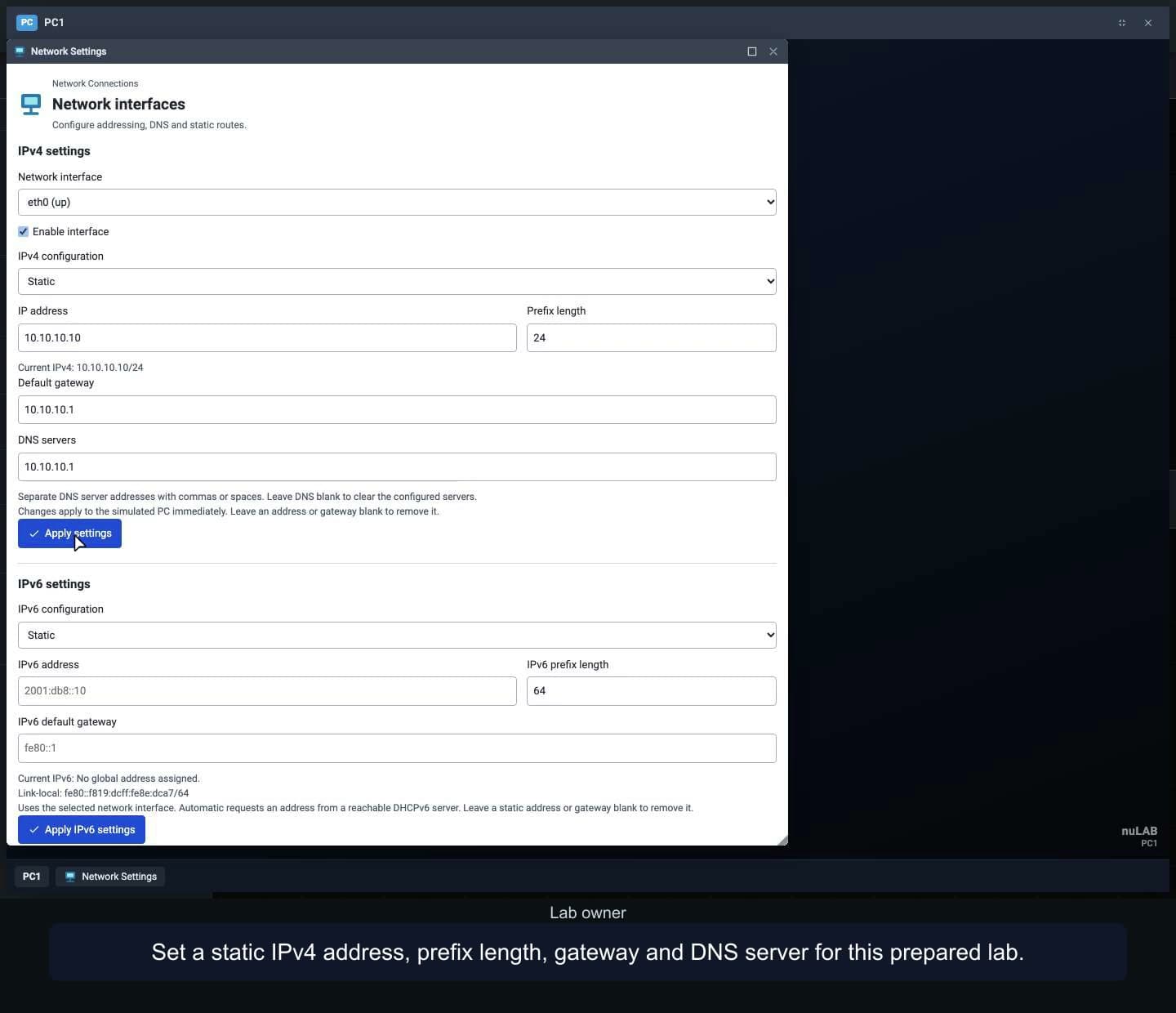
Configure a Linux PC with static IPv4, DHCP, DNS and IPv6 settings. Verify lab connectivity, recover a failed address request and reopen the saved configuration.
WATCH. LEARN. TRY IT.
See how to use nuLAB, one workflow at a time. Watch every episode without signing in.
4:06Configure a Linux PC with static IPv4, DHCP, DNS and IPv6 settings. Verify lab connectivity, recover a failed address request and reopen the saved configuration.
 2:03
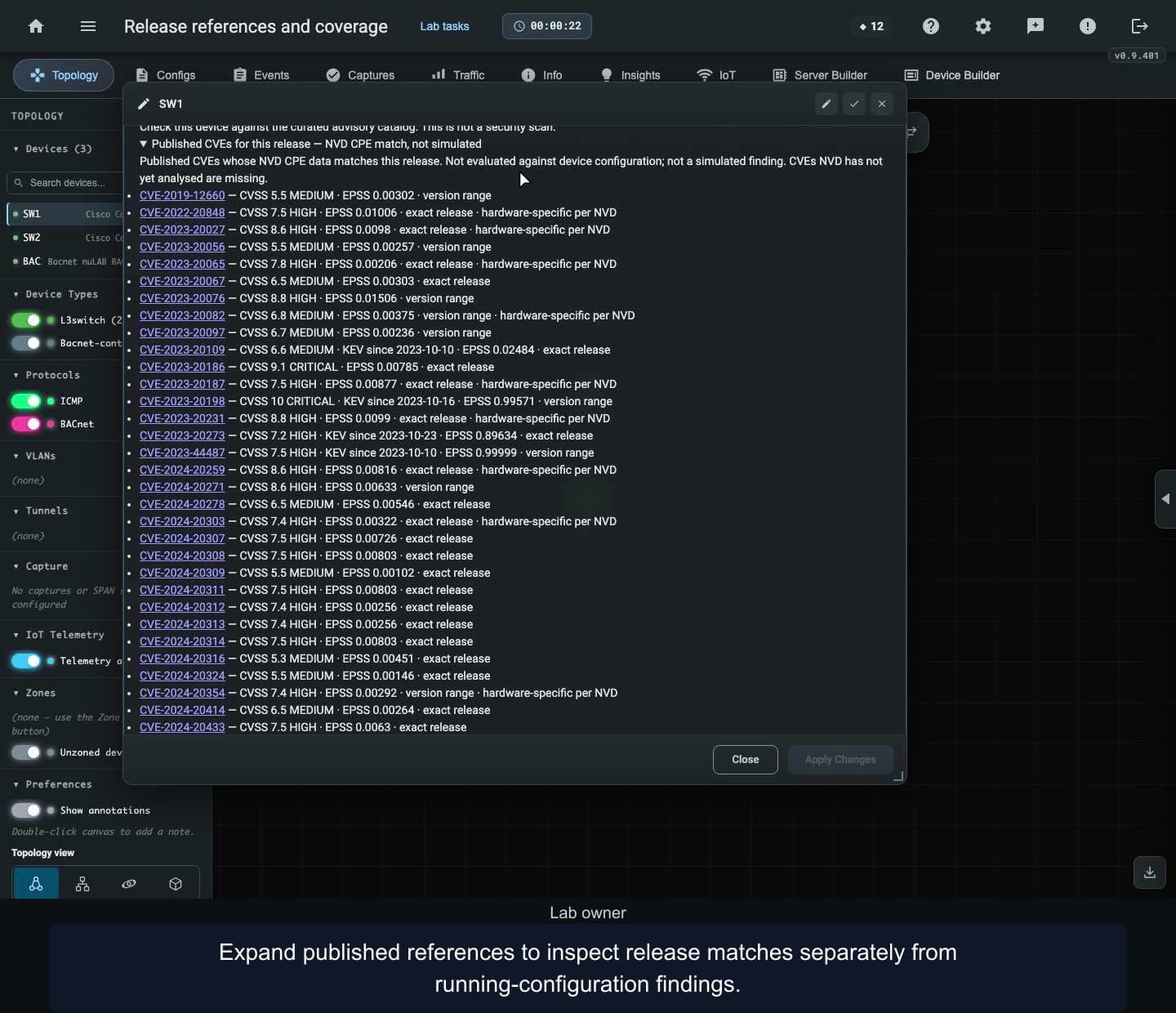
Read release-matched vulnerability references and their snapshot limits, distinguish them from curated findings, and compare a supported release without applying it. Interpret empty findings and missing coverage carefully.
 2:46
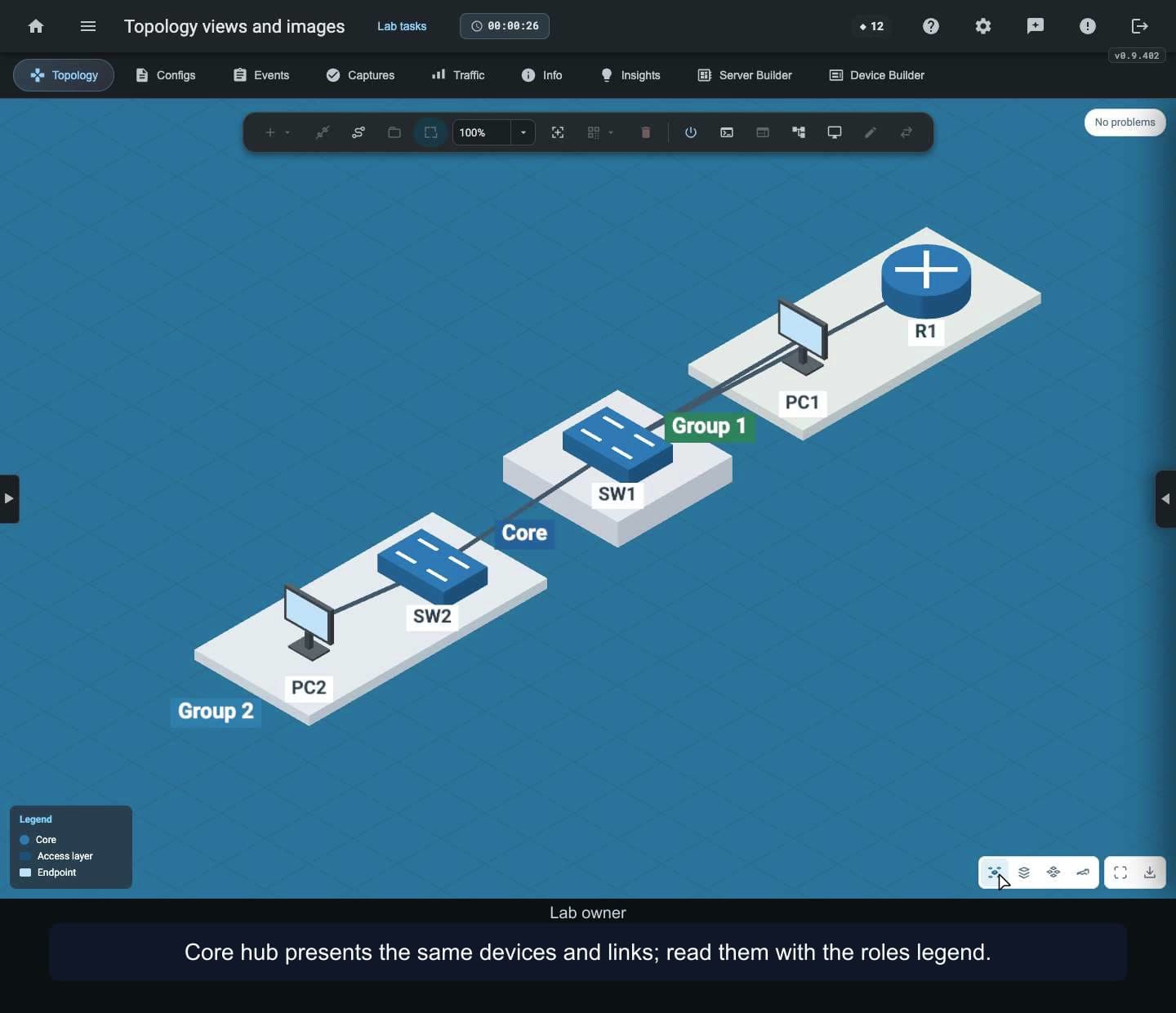
Explore the four Isometric layouts, inspect device health, and export whole-diagram or current-view PNG images. Compare image downloads from Modern and Cosmic while keeping the same working lab.
 2:48
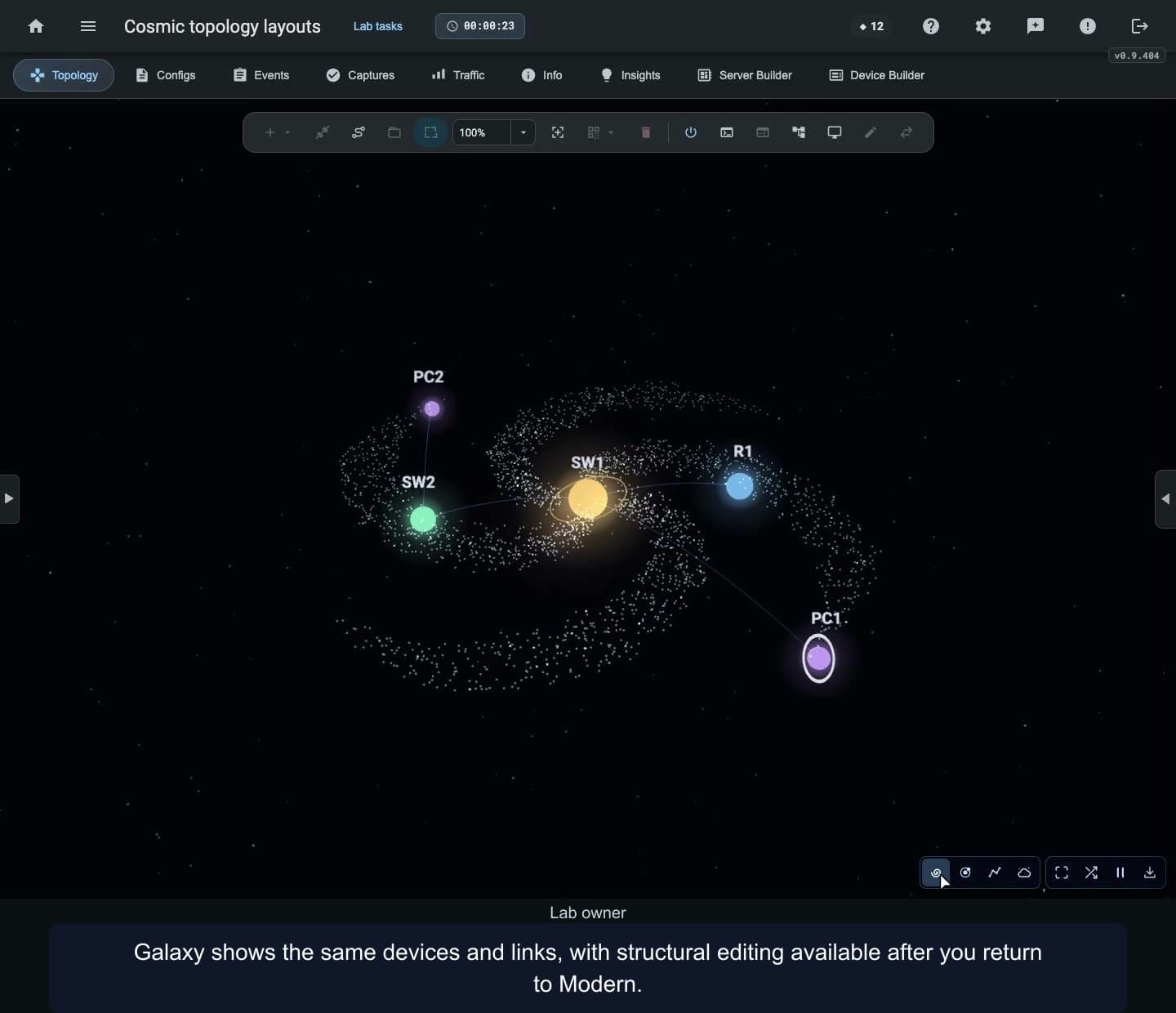
Explore Galaxy, Star systems, Constellation and Nebula layouts. Navigate the view, pause its animation, inspect devices, use a terminal and share a PNG before returning to topology editing.
 11:54
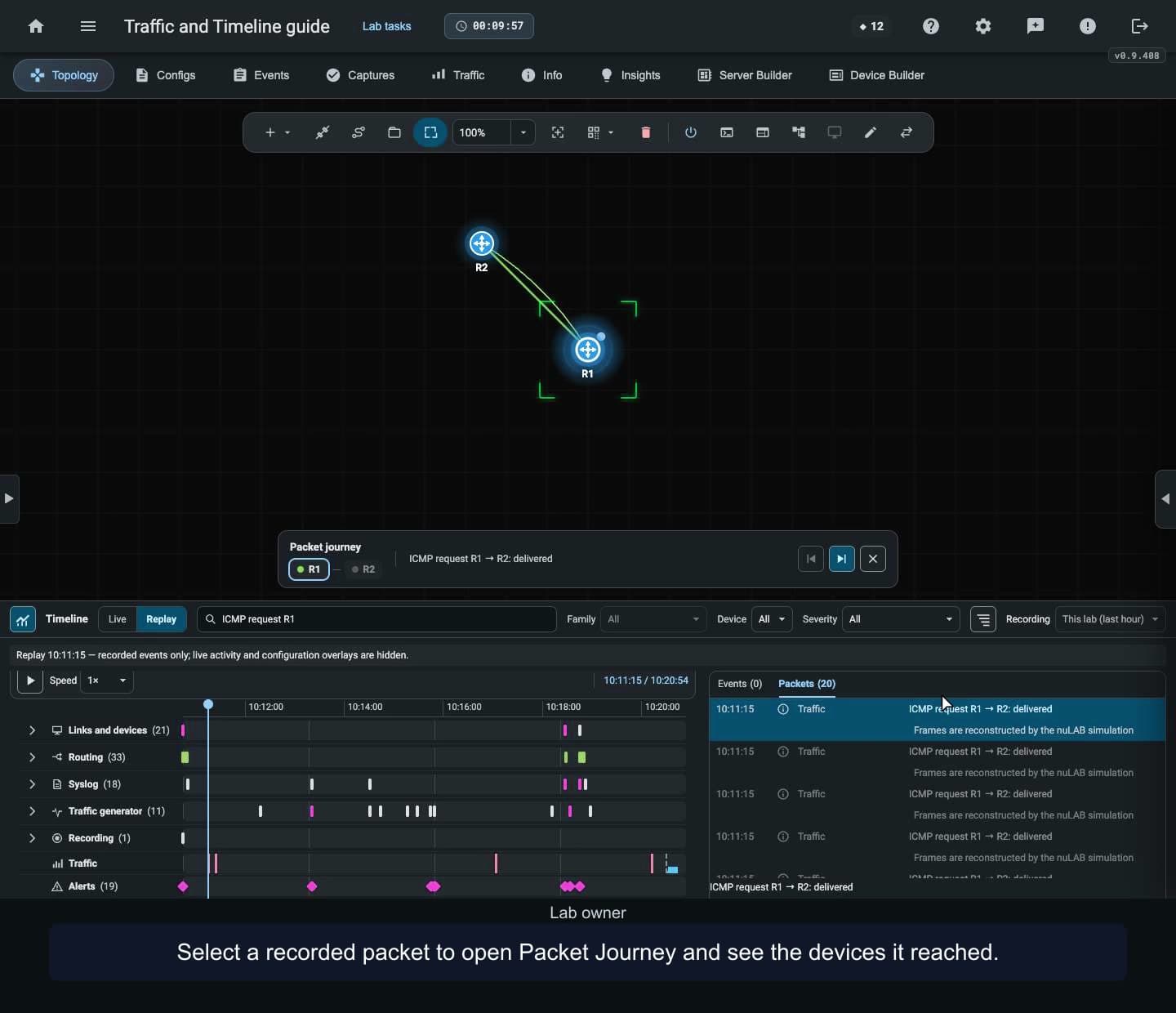
Use the redesigned Timeline to search and filter lab events, replay an interface failure and trace a dropped packet with Packet Journey. Generate UDP and TCP traffic to see how a run responds to filtering and recovery.
 1:25
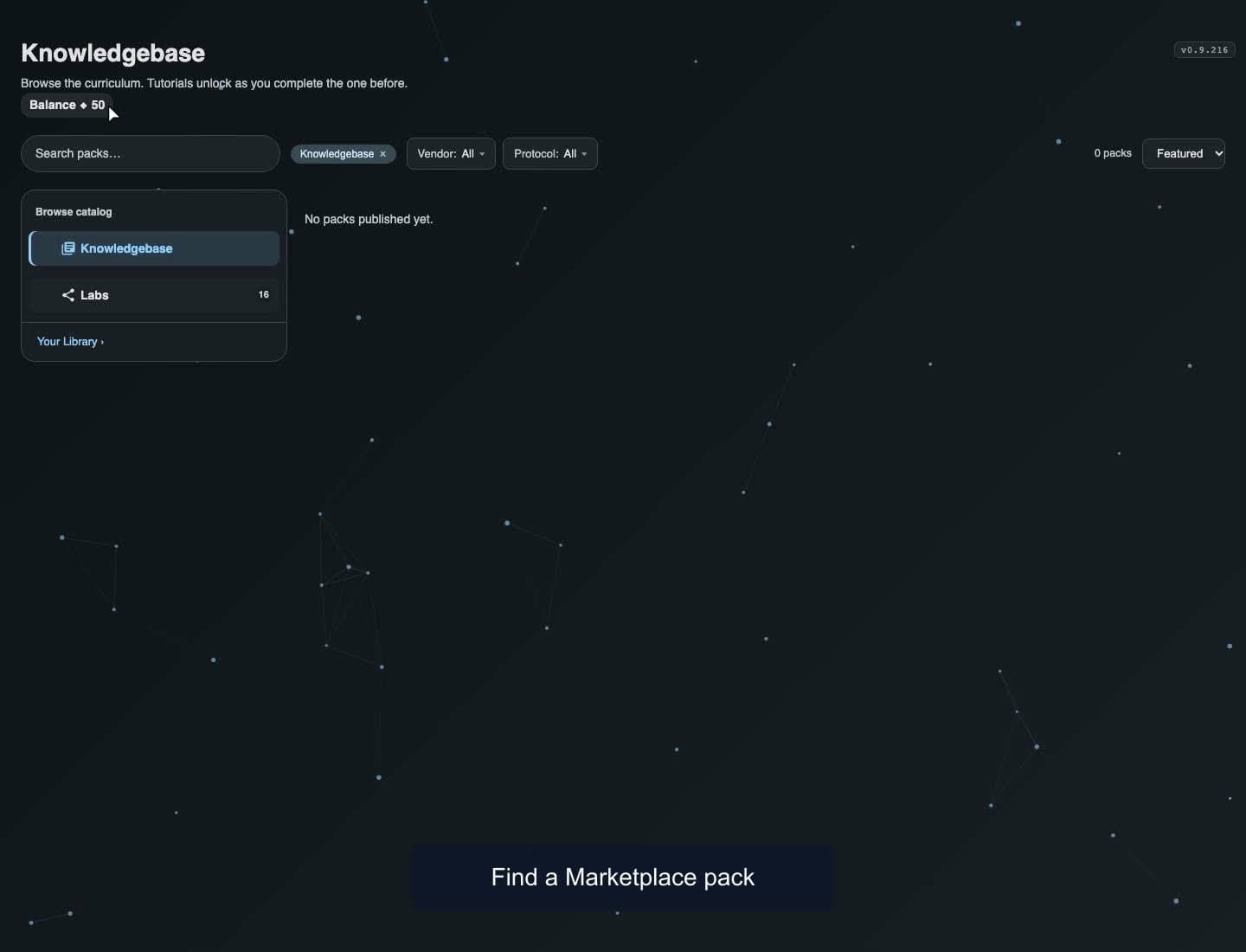
Learn how to find a Marketplace lab pack, review its price, unlock access with credits, install an independent lab copy, and return to an owned pack without buying access again. A separate zero-balance demo account shows the credit-shortfall link into Credits settings. This video uses a clearly labeled 20-credit demo listing and demo credits (50 before purchase, 30 after); listing prices and availability vary. Payment checkout is disabled in this recording deployment, and no payment is completed.
 3:33
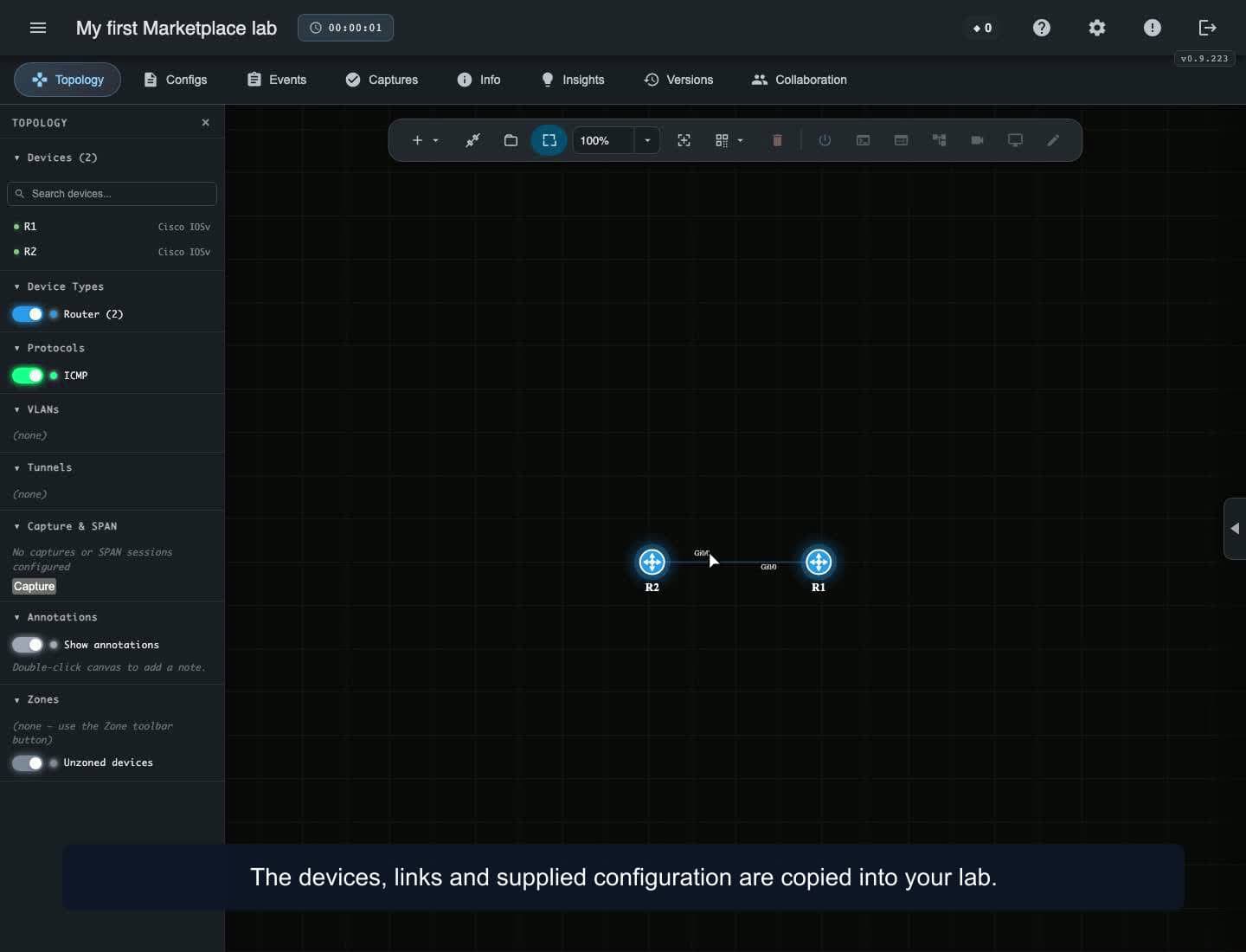
Find a free lab in the Marketplace through the Knowledgebase. Search and filter the catalog, check prerequisites and device limits, install your own copy, inspect its static route, and reopen it from My Labs. Learn how the duplicate warning protects your existing work. This walkthrough uses a labeled two-router demo pack and spends zero credits. Sign in with an account whose device allowance supports the selected pack.
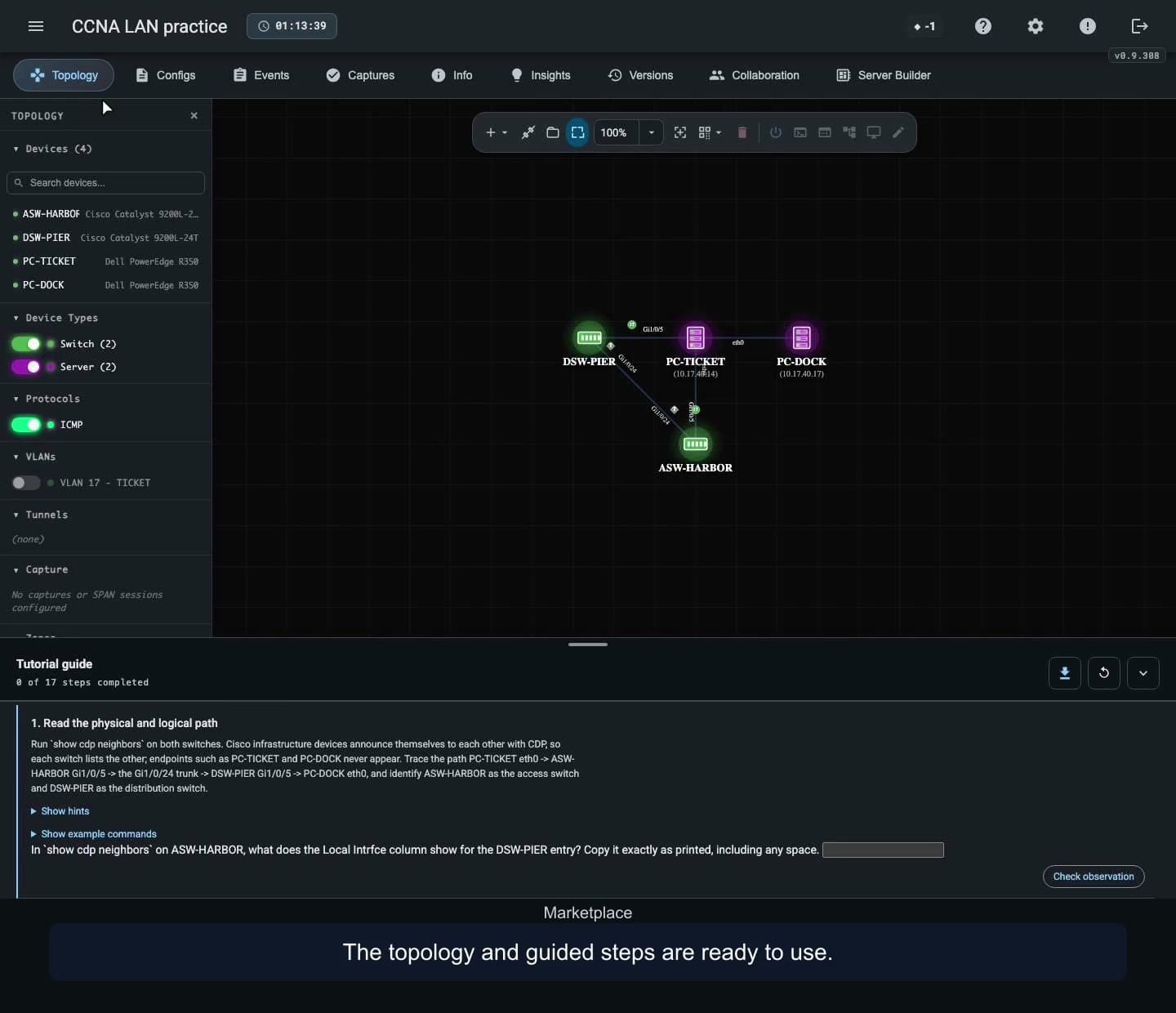 1:51
Browse the Marketplace, open a CCNA tutorial, and find its workbook and guided questions.
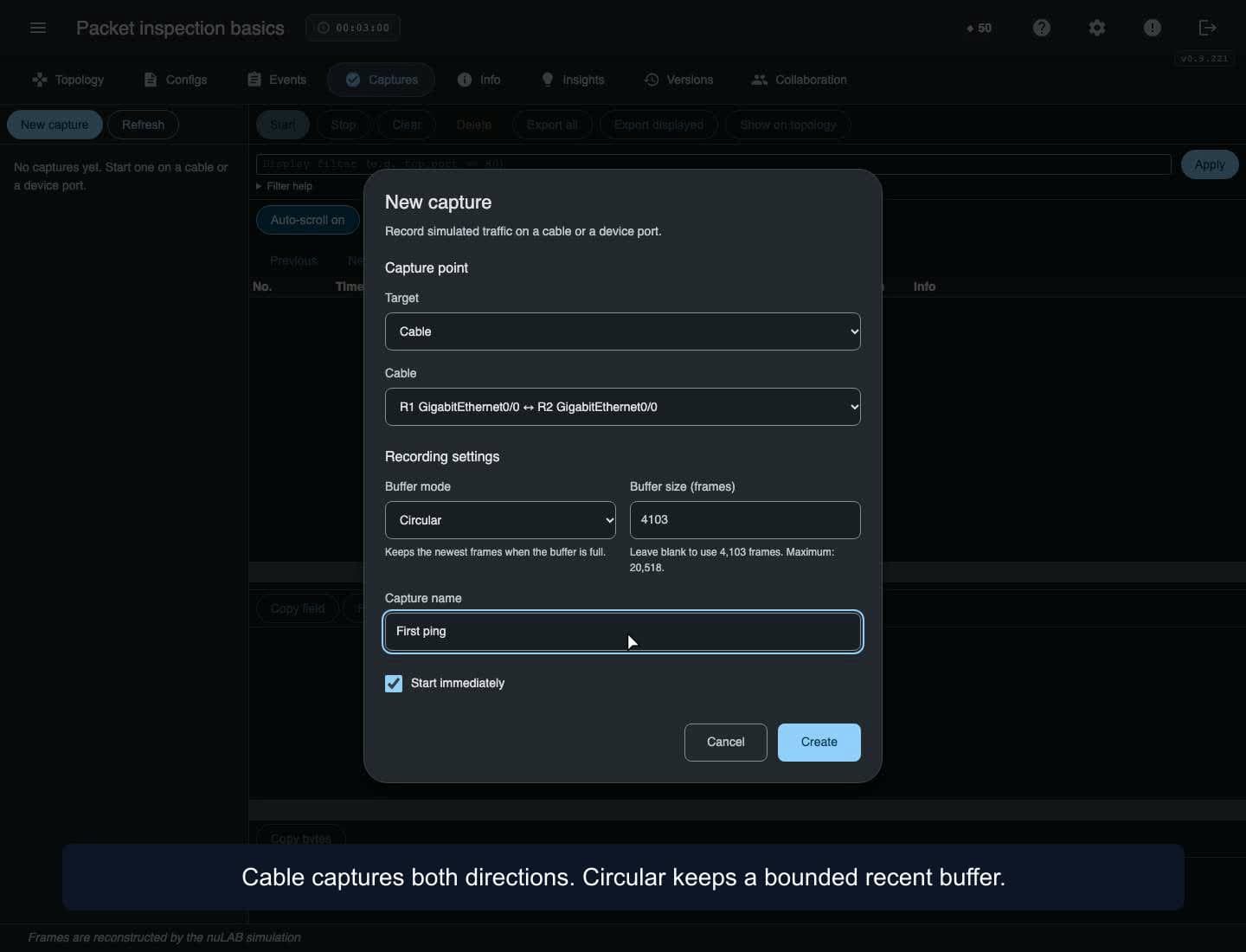 4:00
Capture a real ping in a prepared two-router demo lab. Start a cable capture, inspect ICMP fields and bytes, apply valid and invalid display filters, pin the observed path, export all or displayed frames, then clear and delete the session. Requires Pro or above. Frames are reconstructed simulation observations; capture buffers are temporary and are not preserved by saving a lab.
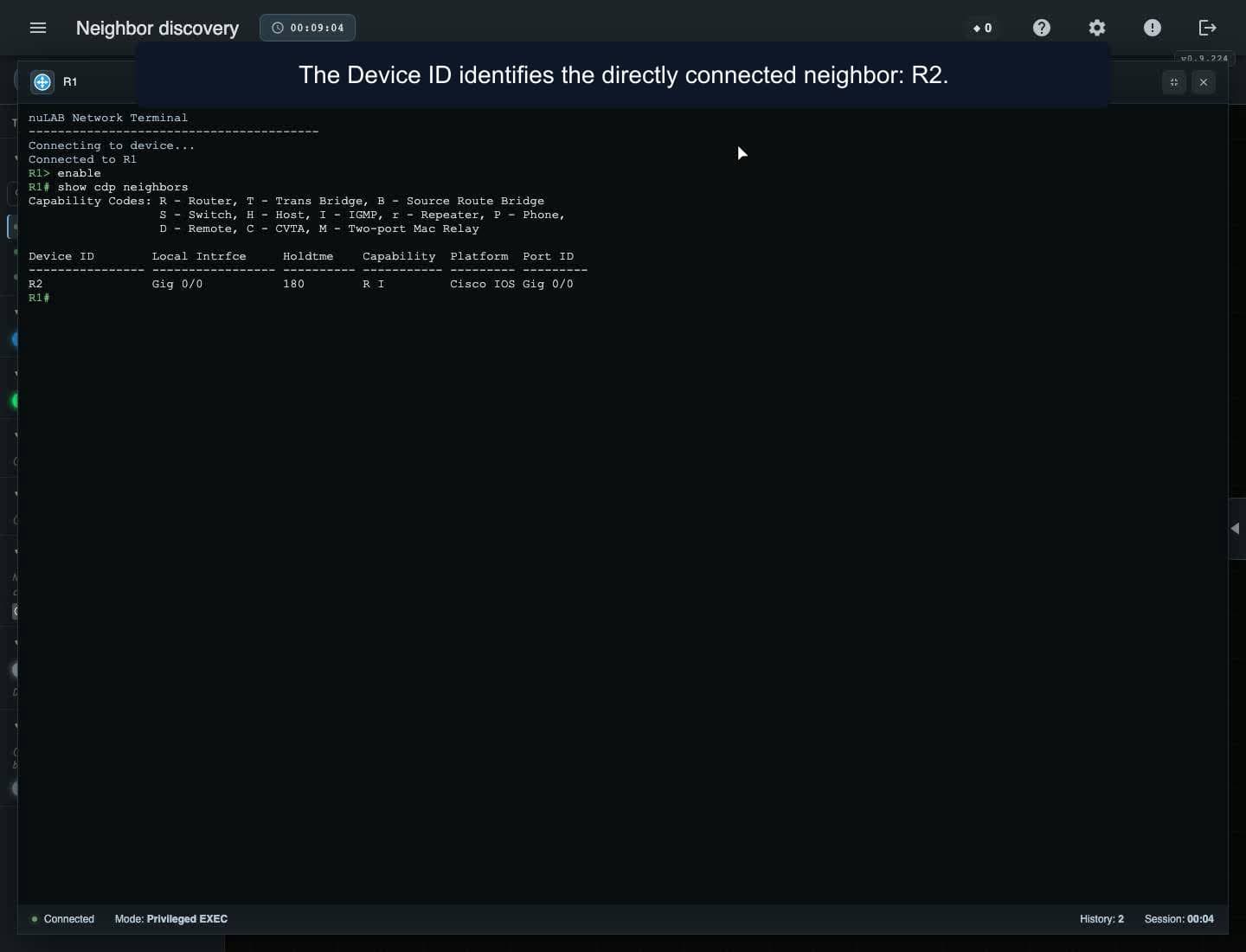 4:05
Match CDP and LLDP neighbor output to the devices and ports on your canvas, enable and save LLDP on both endpoints, and inspect an ARP address mapping after a real traffic test. Remove the cable to diagnose a failed connection, then reconnect the same ports and verify discovery and reachability. This walkthrough uses three prepared routers, including an unconnected control device. Supported syntax varies by device; cached ARP alone does not prove current reachability.
These tutorials use personal prepared labs, compatible active-member seats and distinct accepted accounts per UTC calendar month. Invitations do not consume monthly seats; removing a member does not refund a monthly seat. Shared Training Platform libraries and billing/grants remain deferred.
Live sharing shows topology and terminal output. Built-in audio and video are unavailable; arrange voice separately. English on-screen explanations. Watching is free; using Training Platform features needs an account and an appropriate plan.
Earlier recordings use the previous School name for the Training Platform.
Build a topology, connect devices, configure addressing and test connectivity. Arrange the canvas, add notes and zones, then reopen your saved lab. Follow each workflow using chapters and written explanations.
Watching is free. Create a nuLAB account to try the demonstrated workflow.
Find free and credit-priced Marketplace lab packs in the portal Knowledgebase. Check prerequisites, device limits and the displayed price, then install an independent lab copy. Prices and availability vary.
Watching is free. Sign in with an account that supports the selected pack to try the workflow. The free-lab demo spends zero credits; the credit-pack demo uses a labeled 20-credit listing and demo credits, with no payment checkout completed.
Capture traffic on a cable, inspect packet fields and bytes, filter the display, follow an observed path and export all or displayed frames as PCAP. Frames are reconstructed simulation observations; temporary capture buffers are not preserved by saving a lab.
Watching is free. Using Traffic capture requires a nuLAB account with Pro or above.
Identify connected neighbors and address mappings, inspect physical ports and test reachability. Follow prepared lab examples using chapters and narration transcripts. A cached address mapping alone does not prove a working link; supported syntax and behavior vary by device.
Watching is free. Create a nuLAB account with a suitable device allowance to try the demonstrated lab workflows.
Configure sensors, follow MQTT topics and inspect delivery in a prepared lab. This example uses the in-lab QoS 0 client, Sparkplug-JSON messages and a preconfigured secured broker.
Watching is free. Using IoT Operations requires a nuLAB Enterprise account and supported devices.
Read your dashboard summary, create and reopen a lab, then find Knowledgebase, Marketplace and Plan & billing. Device capacity and AI credits are separate; Time spent and Last used describe different parts of your lab activity.
Watching is free. Sign in to your nuLAB account to try the workflow. This recording uses a demonstration environment with purchasing disabled; account values and available options may differ. Signup, purchases and credit top-up are covered separately.
Use nuLAB Gateway with an external SSH terminal, save a device change and confirm it in your browser. This macOS example starts with Gateway installed and paired; installation and account approval are prerequisites.
Watching is free. Use the Gateway build for your computer and a supported lab device. Gateway account approval and the device’s own login are separate. Gateway can keep accessing the active lab after the browser closes.