 3:17
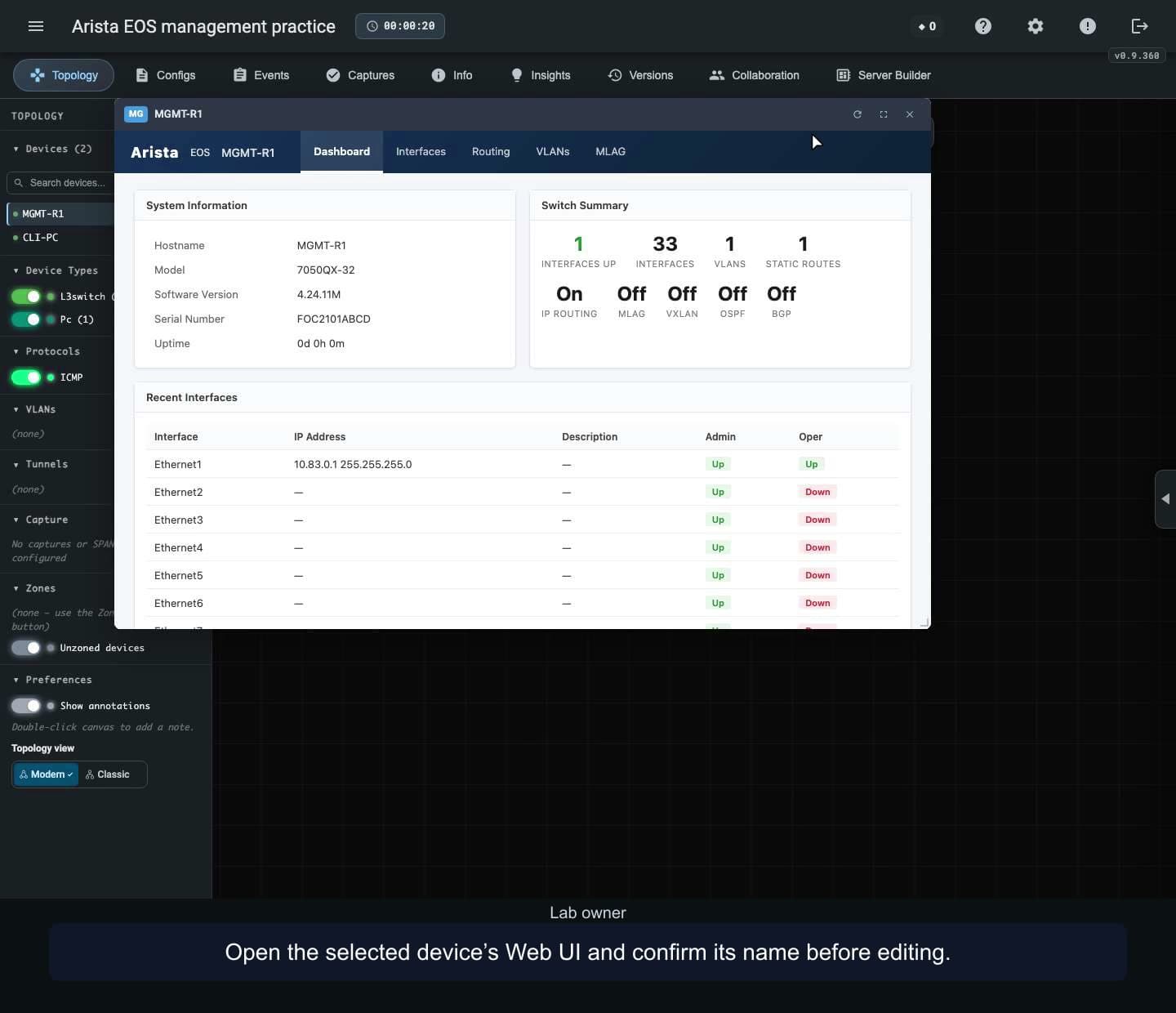
Use the Arista EOS Web UI
Configure an interface and an IPv4 static route through the Arista EOS management pages. Verify the terminal, connected PC, saved settings and removal of the selected route while preserving another entry.
WATCH. LEARN. TRY IT.
See how to use nuLAB, one workflow at a time. Watch every episode without signing in.
3:17Configure an interface and an IPv4 static route through the Arista EOS management pages. Verify the terminal, connected PC, saved settings and removal of the selected route while preserving another entry.
 3:17
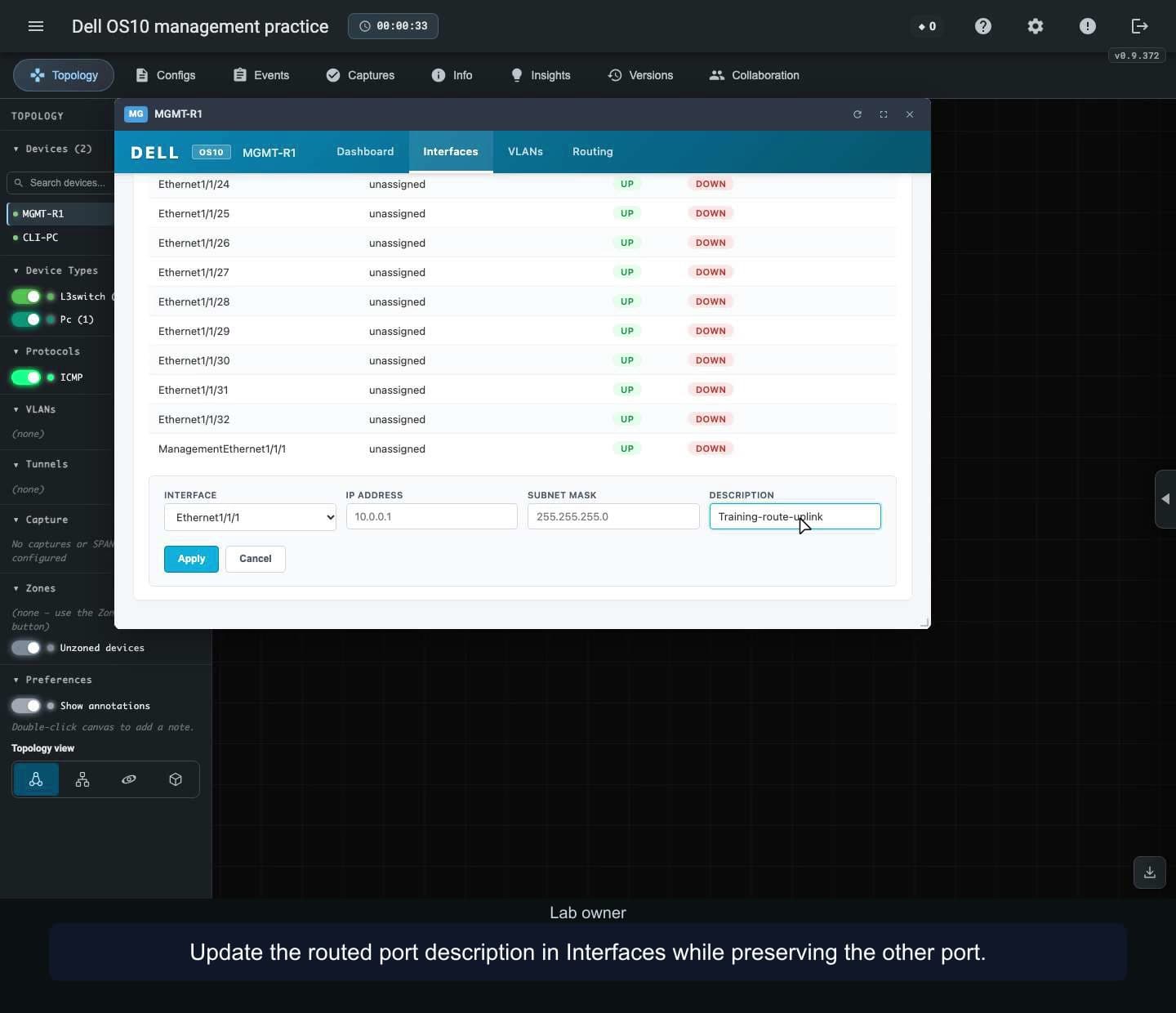
Configure an interface and an IPv4 static route through the Dell OS10 management pages. Verify the terminal, connected PC, saved settings and removal of the selected route while preserving another entry.
 3:10
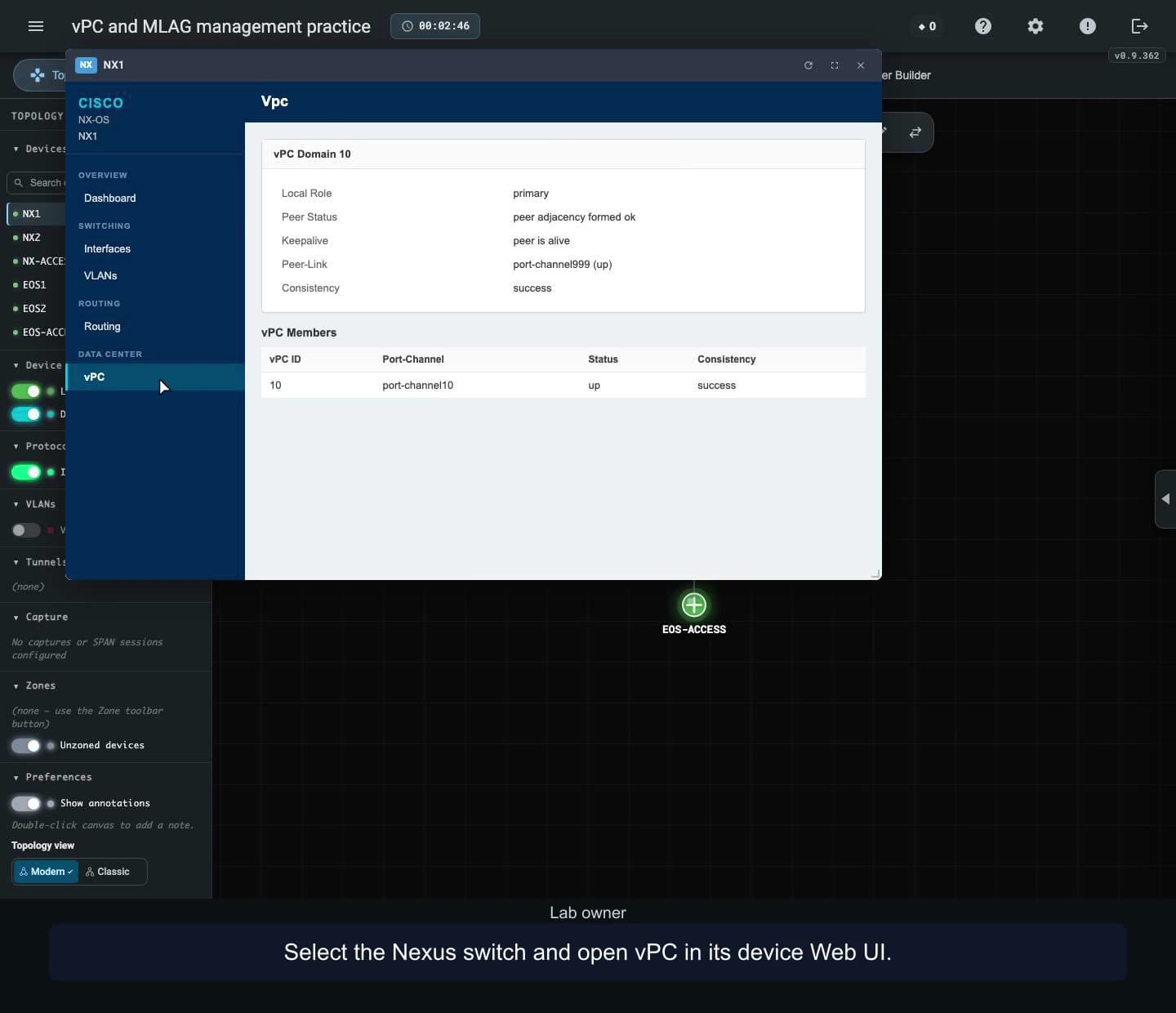
Inspect Cisco Nexus vPC and Arista EOS MLAG status in the device management pages. Compare the CLI, review the prepared VLANs, disable and restore an Arista peer link, then reopen the saved lab and inspect an unconfigured switch.
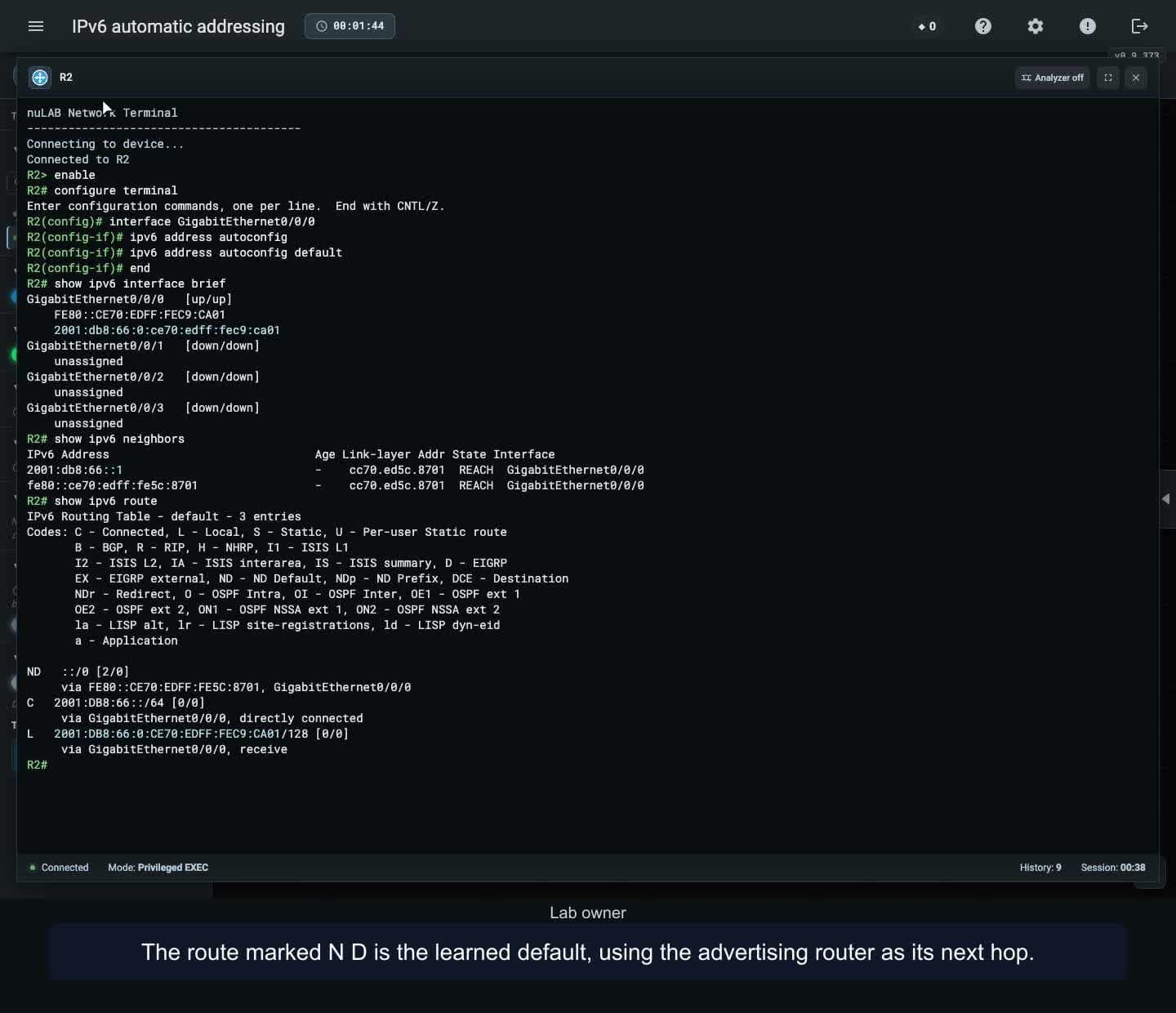 2:54
Enable SLAAC on a Cisco IOS XE interface, inspect its learned IPv6 address and default route, test off-link connectivity, and save or remove autoconfiguration while preserving a manual address.
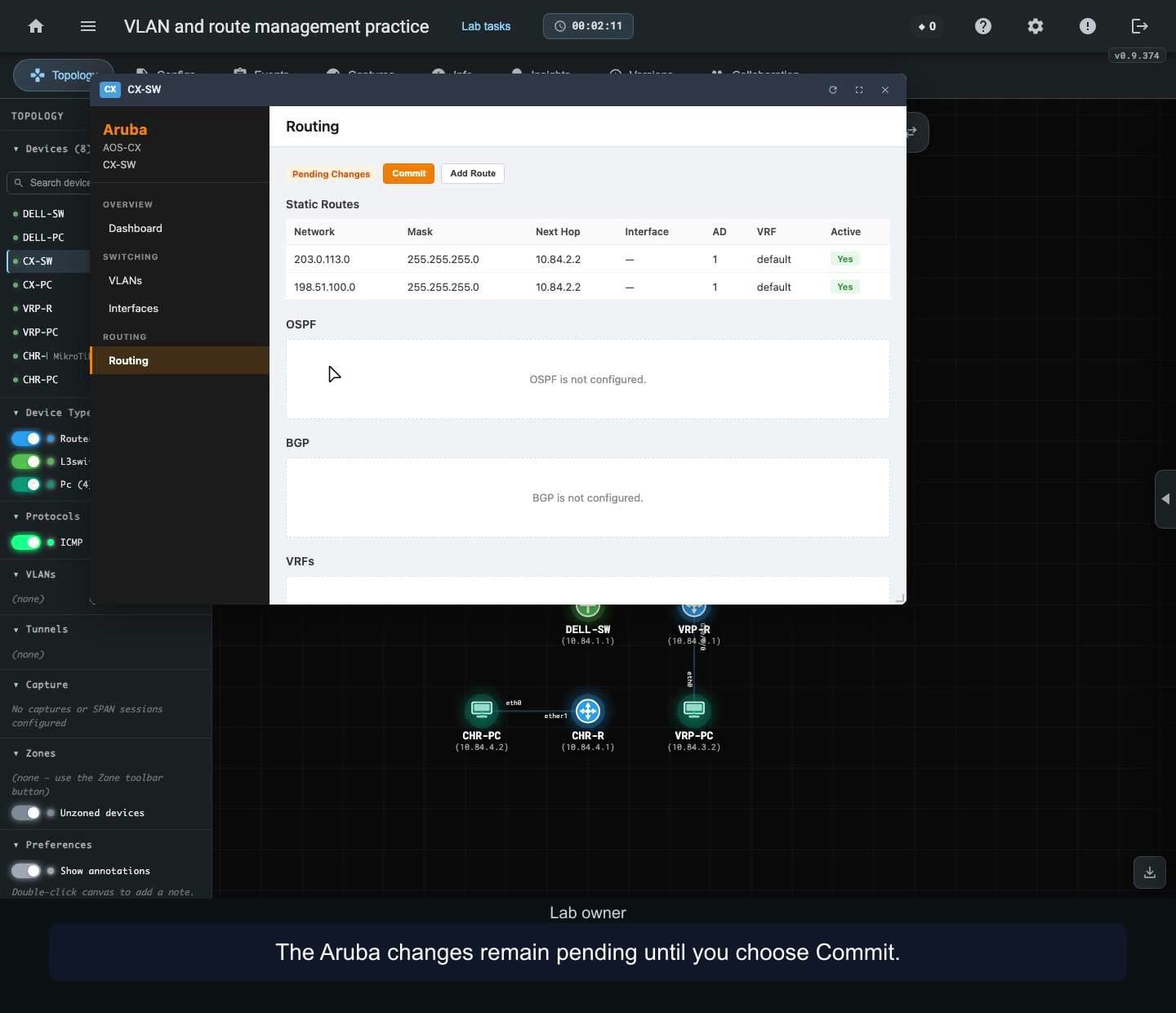 6:21
Create named VLANs on Dell OS10 and Aruba AOS-CX, add static routes on Aruba, Huawei and MikroTik, then save and reopen the lab. Remove selected routes while preserving independent control entries.
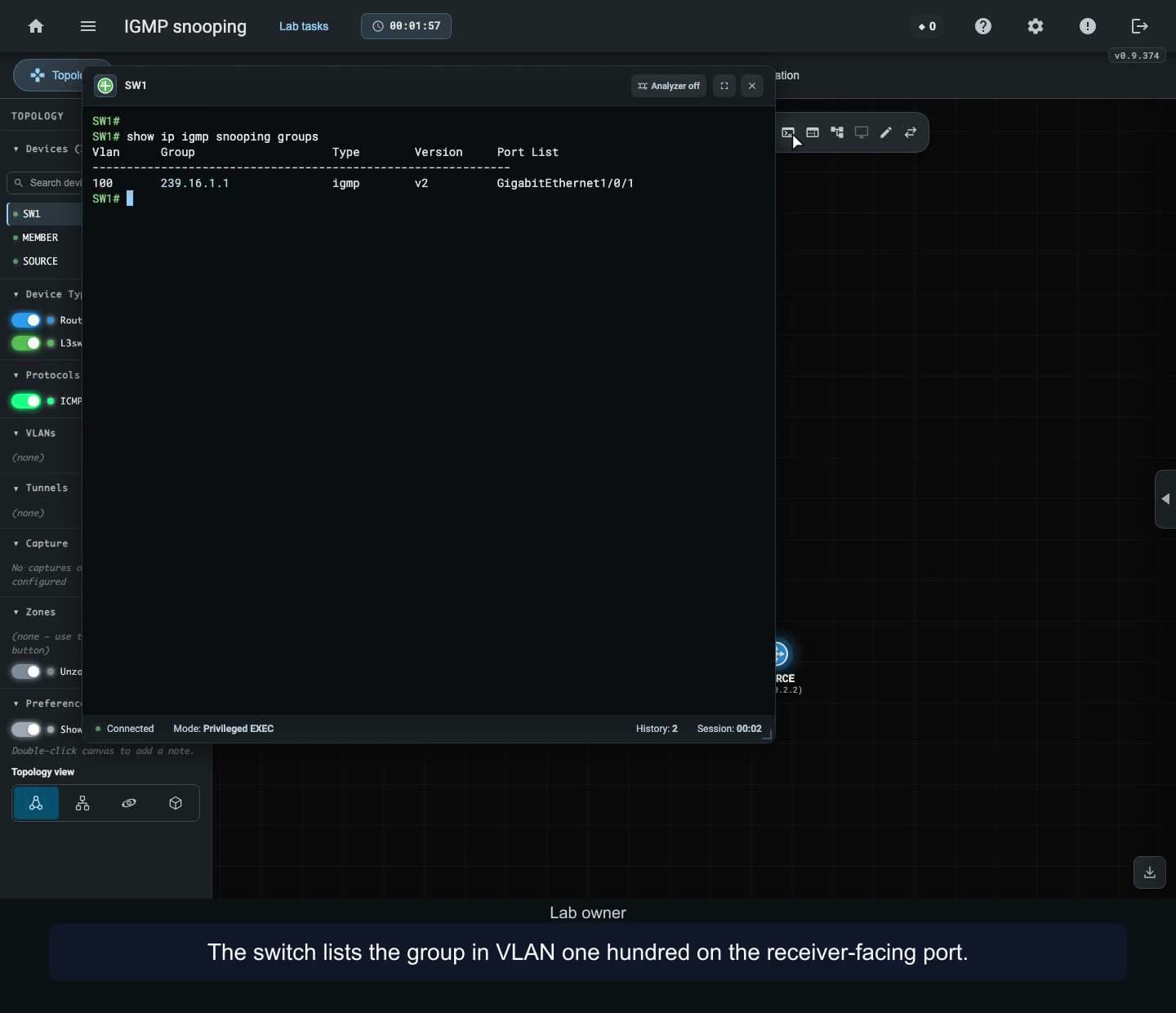 4:21
Join and withdraw IPv4 multicast receivers on a Cisco IOS XE VLAN, inspect learned member ports, verify multicast delivery, and compare enabled and disabled snooping while preserving an independent group.
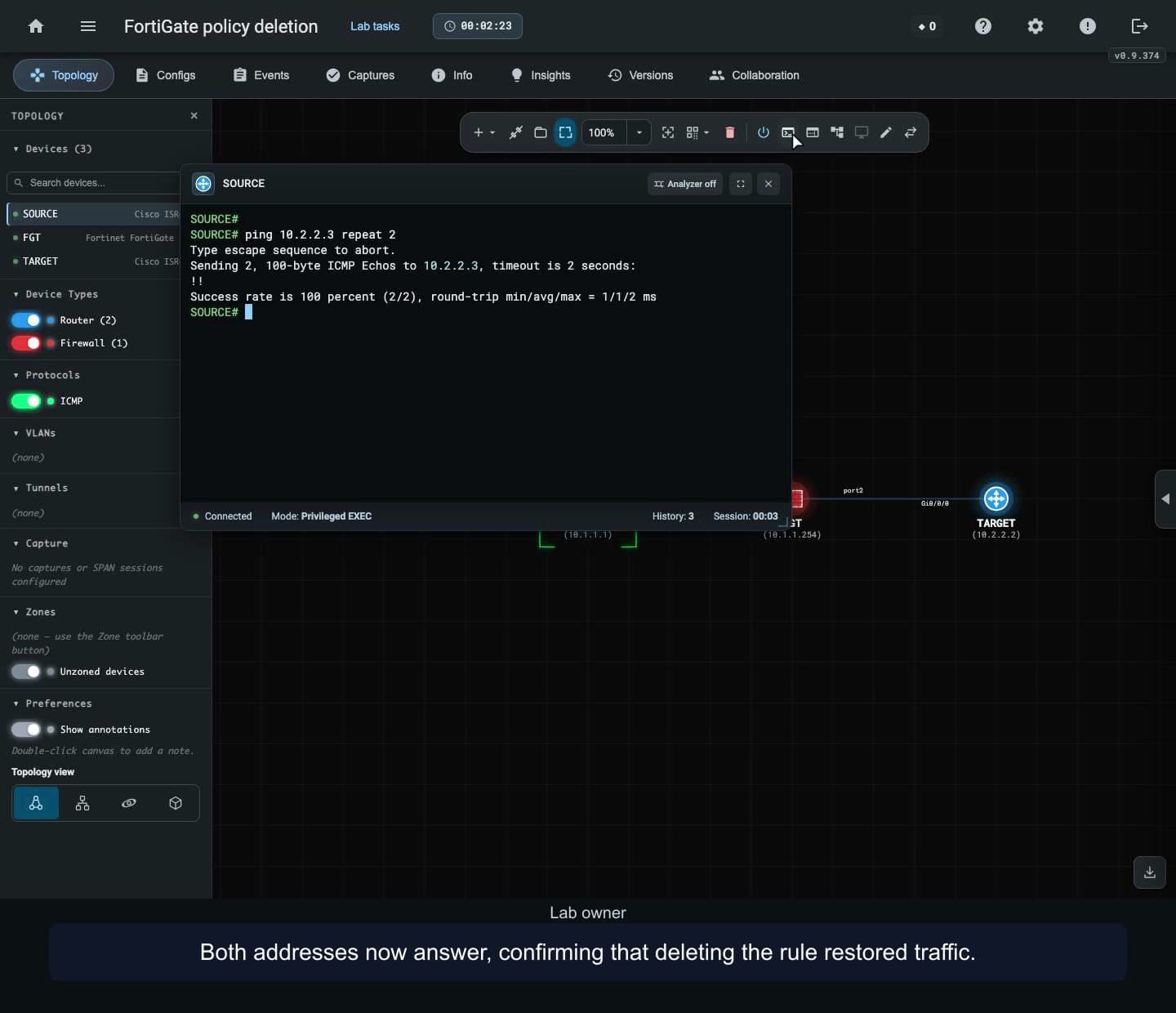 1:58
Remove a selected FortiGate firewall policy, inspect the remaining running configuration and verify that traffic recovers while an independent permitted destination stays reachable.
 3:25
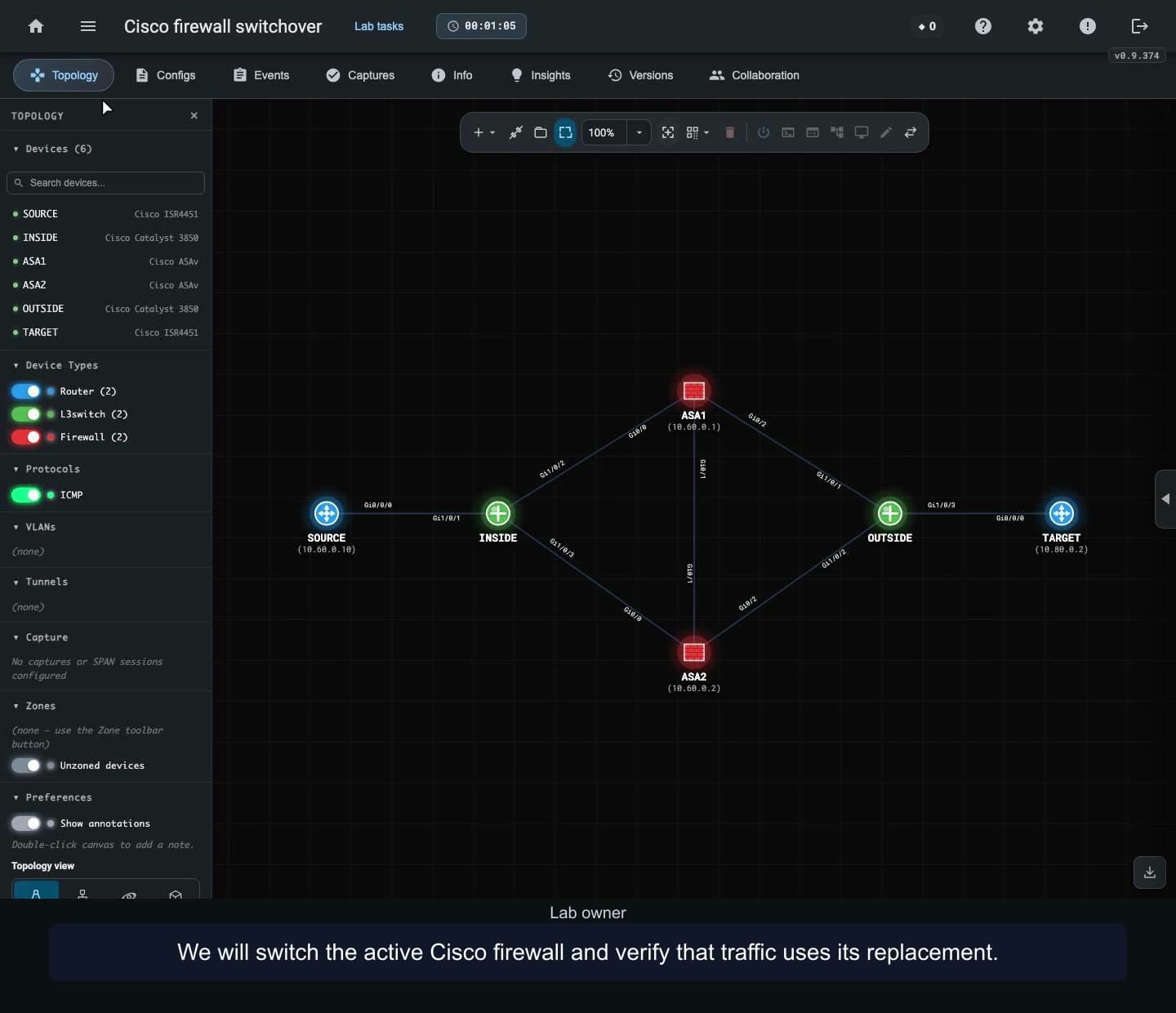
Switch the active role between two Cisco ASAv firewalls, check the active and standby addresses, and verify permitted and denied IPv4 traffic after transfer and return.
 3:42
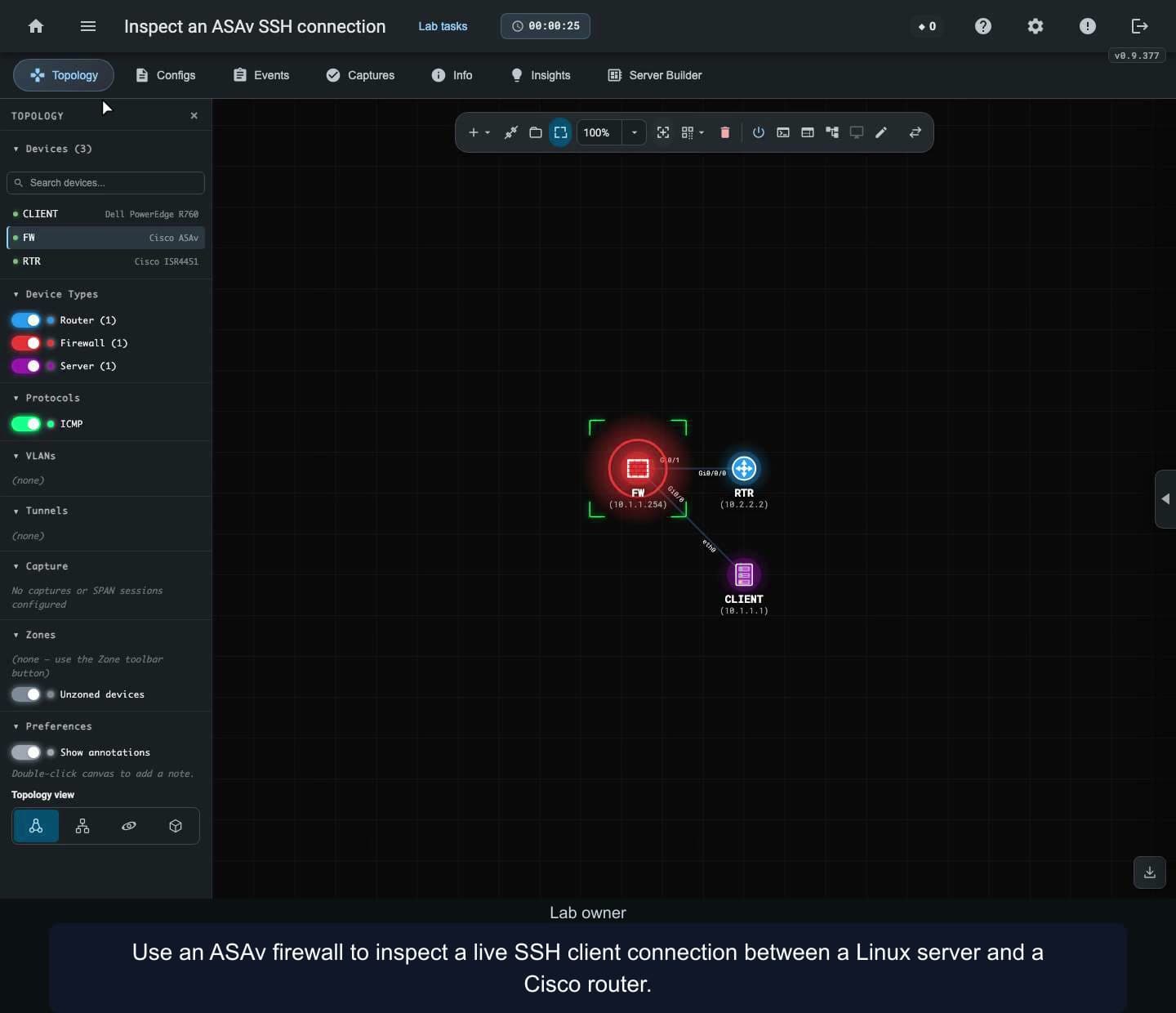
Follow a live SSH connection across a Cisco ASAv firewall, inspect its addresses and ports, compare a denied attempt, and verify cleanup after disconnecting or leaving the Python interpreter.
 3:42
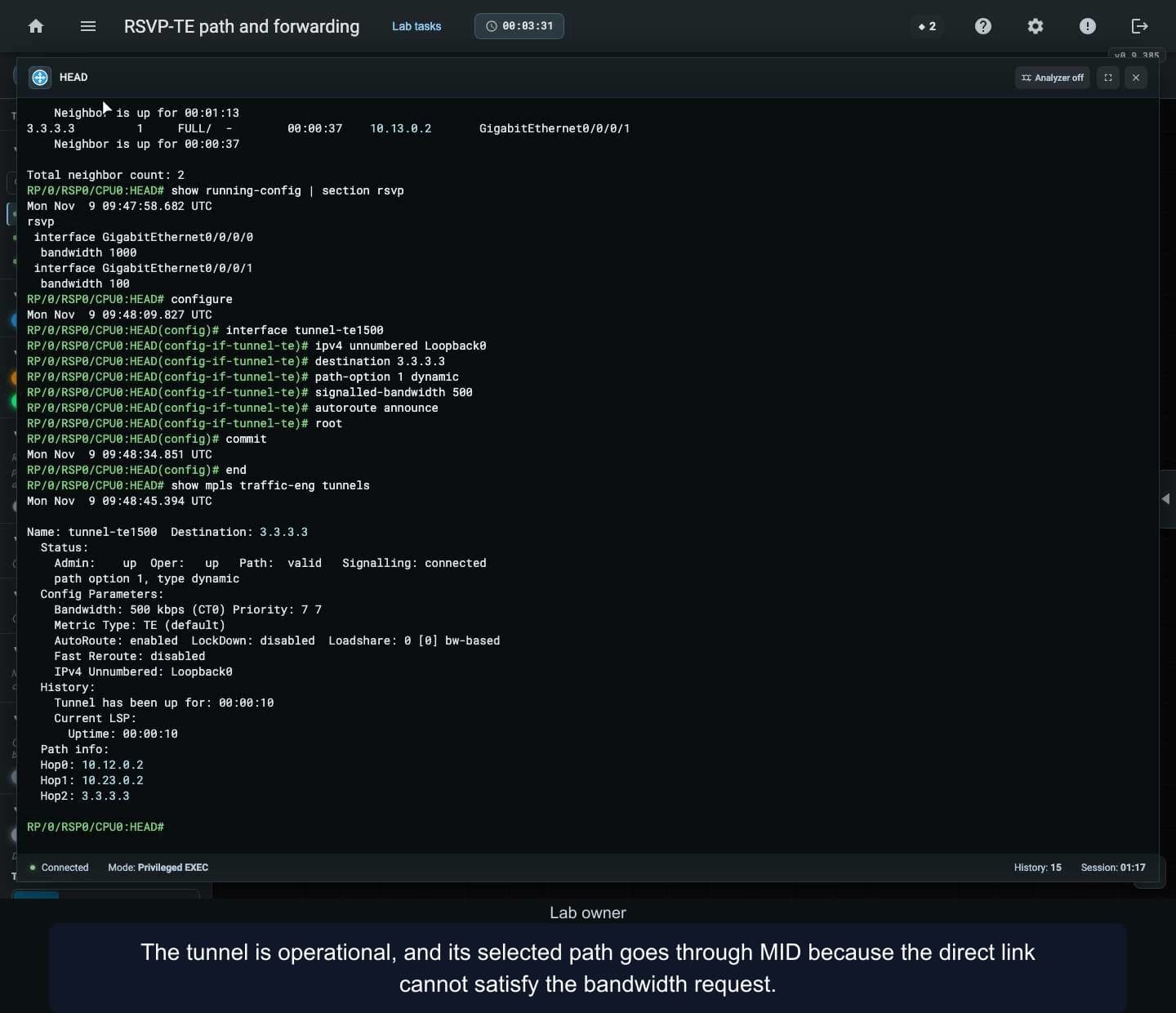
Configure a dynamic RSVP-TE tunnel on IOS XR, compare its bandwidth-constrained path with the ordinary OSPF route, and verify forwarding with traceroute and MPLS byte counters. Shut and restore a link to compare tunnel recovery with ordinary IP reachability.
These tutorials use personal prepared labs, compatible active-member seats and distinct accepted accounts per UTC calendar month. Invitations do not consume monthly seats; removing a member does not refund a monthly seat. Shared Training Platform libraries and billing/grants remain deferred.
Live sharing shows topology and terminal output. Built-in audio and video are unavailable; arrange voice separately. English on-screen explanations. Watching is free; using Training Platform features needs an account and an appropriate plan.
Earlier recordings use the previous School name for the Training Platform.
Build a topology, connect devices, configure addressing and test connectivity. Arrange the canvas, add notes and zones, then reopen your saved lab. Follow each workflow using chapters and written explanations.
Watching is free. Create a nuLAB account to try the demonstrated workflow.
Find free and credit-priced Marketplace lab packs in the portal Knowledgebase. Check prerequisites, device limits and the displayed price, then install an independent lab copy. Prices and availability vary.
Watching is free. Sign in with an account that supports the selected pack to try the workflow. The free-lab demo spends zero credits; the credit-pack demo uses a labeled 20-credit listing and demo credits, with no payment checkout completed.
Capture traffic on a cable, inspect packet fields and bytes, filter the display, follow an observed path and export all or displayed frames as PCAP. Frames are reconstructed simulation observations; temporary capture buffers are not preserved by saving a lab.
Watching is free. Using Traffic capture requires a nuLAB account with Pro or above.
Identify connected neighbors and address mappings, inspect physical ports and test reachability. Follow prepared lab examples using chapters and narration transcripts. A cached address mapping alone does not prove a working link; supported syntax and behavior vary by device.
Watching is free. Create a nuLAB account with a suitable device allowance to try the demonstrated lab workflows.
Configure sensors, follow MQTT topics and inspect delivery in a prepared lab. This example uses the in-lab QoS 0 client, Sparkplug-JSON messages and a preconfigured secured broker.
Watching is free. Using IoT Operations requires a nuLAB Enterprise account and supported devices.
Read your dashboard summary, create and reopen a lab, then find Knowledgebase, Marketplace and Plan & billing. Device capacity and AI credits are separate; Time spent and Last used describe different parts of your lab activity.
Watching is free. Sign in to your nuLAB account to try the workflow. This recording uses a demonstration environment with purchasing disabled; account values and available options may differ. Signup, purchases and credit top-up are covered separately.
Use nuLAB Gateway with an external SSH terminal, save a device change and confirm it in your browser. This macOS example starts with Gateway installed and paired; installation and account approval are prerequisites.
Watching is free. Use the Gateway build for your computer and a supported lab device. Gateway account approval and the device’s own login are separate. Gateway can keep accessing the active lab after the browser closes.